

🌍 The Most Comprehensive Guide to Multilingual Translation for WordPress Websites

Translating a WordPress website is a complex process that requires careful planning and execution. We've created this comprehensive guide based on our extensive experience translating websites, using our plugin Gato AI Translations for Polylang.
This guide walks you through everything you need to know: from the initial preparations and configuration, through the actual translation process, to validation and troubleshooting. This is the process we follow when translating our clients' websites.
Follow this guide to avoid common pitfalls and ensure a smooth translation experience.
Install and Configure Polylang
Gato AI Translations for Polylang requires Polylang to be installed and activated. Polylang is the multilingual framework that manages your languages and translation relationships.
After installation, you'll need to configure Polylang with your languages:
- Go to Languages in your WordPress admin menu
- Add your default language (the language of your existing content)
- Add all the target languages you want to translate to

You must verify that all your active plugins are compatible with Polylang. Some plugins may not work correctly in a multilingual environment.
If you discover an incompatible plugin, look for alternatives, contact the developer for support, or consider if it's truly essential.
Audit and Fix Your Origin Content First
Before you start translating, it's essential to ensure your origin content is in perfect shape. Any issues in your original content will be replicated to all translations, meaning you'll need to fix the same problem multiple times (once for each language).
Content audit checklist:
-
Check for broken links
- Use a plugin like Broken Link Checker to identify broken internal and external links
- Fix all broken links before translating
- Verify that internal links point to the correct posts/pages
-
Verify all images exist and are optimized
- Check that all images load correctly
- Ensure images have proper alt text for accessibility and SEO
- Verify image file sizes are reasonable (not too large)
- Remove any placeholder images or broken image references
-
Review formatting and styling
- Check that text formatting is consistent
- Verify that headings are properly structured (H1, H2, H3, etc.)
- Ensure lists, tables, and other structured content display correctly
- Test that custom styling and CSS work as expected
-
Validate content structure
- Ensure proper use of Gutenberg blocks or page builder elements
- Check that custom post types and taxonomies are set up correctly
- Verify that metadata (custom fields, ACF fields, etc.) is complete
-
Check for placeholder content
- Remove any "Lorem ipsum" or placeholder text
- Replace any temporary content with final versions
- Ensure all content is publication-ready
-
SEO considerations
- Verify meta titles and descriptions are set
- Check that URLs are SEO-friendly
- Ensure proper use of headings for SEO structure
Configure Internal Link Replacement
When translating content, internal links need to be updated to point to the translated versions. Gato AI Translations for Polylang can automatically handle this for you.
The plugin allows you to configure which types of internal links should be replaced:
- Custom Posts: Links to other posts, pages, custom post types, etc.
- Media: Links to media items (images, videos, etc.)
- Tags: Links to tag archive pages
- Categories: Links to category archive pages
- Users: Links to author pages
Post links in content are automatically extracted from the origin content and replaced. For other link types (media, tags, categories, users), you need to enable them in the settings if you want them replaced.
How to configure:
- Go to the Settings page, under Plugin Configuration > Internal Links Replacement
- Enable only the link types that you actually use in your content
- Save your settings

Verify All Links Use Correct URLs
For the internal link replacement feature to work correctly, all links in your content must use the proper URL format. This applies to links in:
- Post/page content (Gutenberg blocks, HTML, etc.)
- Elementor widgets and meta fields
- Bricks builder elements and meta fields
- Custom fields and metadata
URL requirements:
-
URLs must include the full domain
- ✅ Correct:
https://www.mysite.com/hello-world/ - ❌ Incorrect:
/hello-world/(relative URL) - ❌ Incorrect:
hello-world/(no domain or protocol)
- ✅ Correct:
-
URLs must point to the current slug
- If you've changed a post's slug, update all links to use the new slug
- WordPress needs to be able to retrieve the post from the URL
- Old slugs that redirect won't work for link replacement
-
URLs must use the correct domain (no redirects)
- ✅ Correct:
https://www.mysite.com/hello-world/ - ❌ Incorrect:
https://mysite.com/hello-world/(if your site uses www) - The plugin needs the exact domain to match and replace links correctly
- ✅ Correct:
To fix incorrect domains in URLs, you can use a plugin like Better Search Replace to search and replace URLs directly in your database, eg: replacing https://mysite.com with https://www.mysite.com.
Handle Images that Contain Text
A common oversight when translating websites is forgetting that images can contain text that may need to be translated.
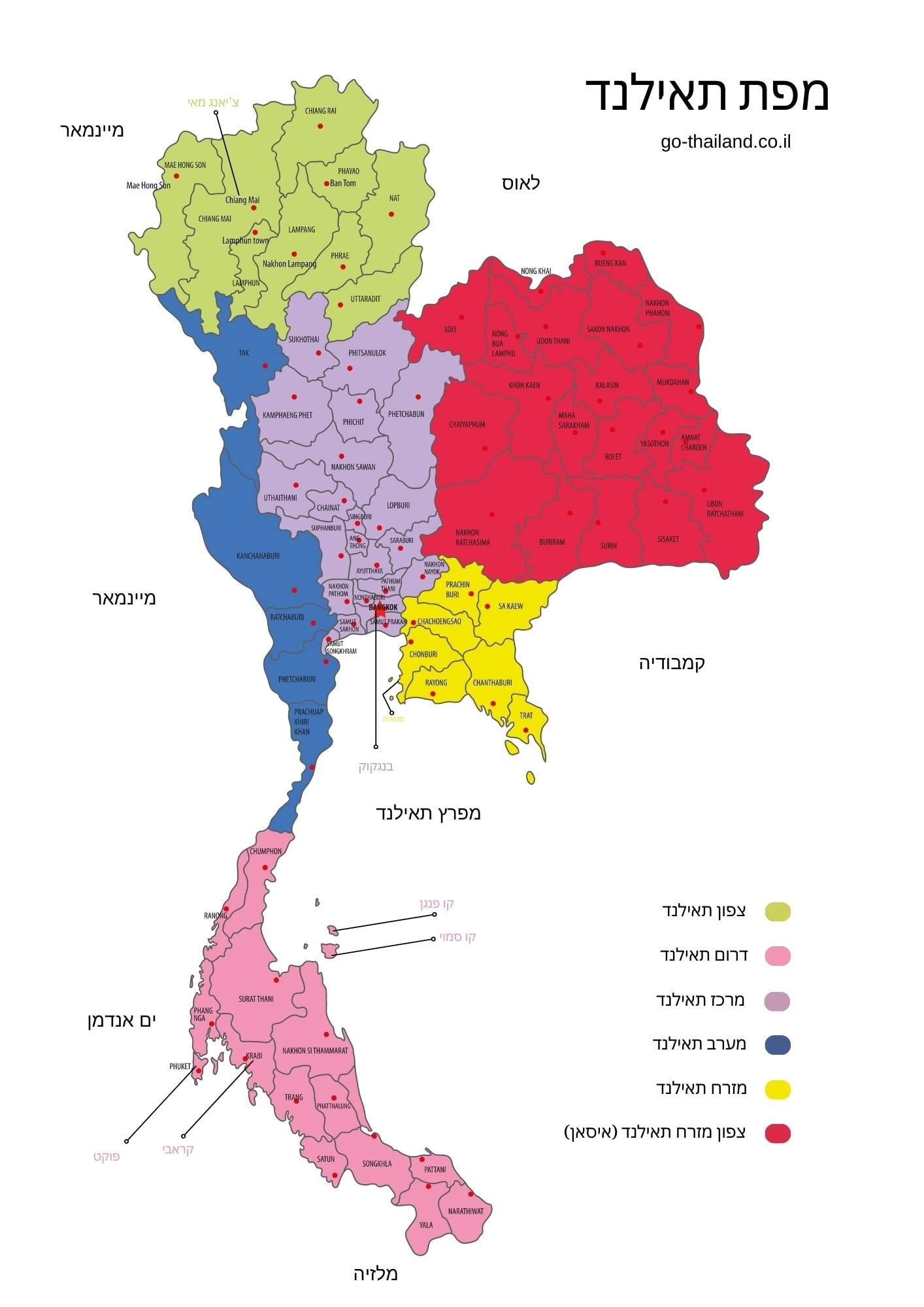
When you translate a post, the images are copied to the translated version, and image metadata (title, alt text, caption) is translated, but any text within those images remains in the original language.
For instance, this image contains Hebrew text, making it unsuitable for other languages.
Your options:
-
Keep embedded text (if the language can still be generally understood)
- Suitable when the text is in a widely understood language or uses universal symbols/numbers
- No additional work required
-
Remove text from images
- Use images without embedded text
-
Use text overlays instead of embedded text
- Use images without embedded text
- Overlay text (using Gutenberg blocks, Elementor widgets, Bricks elements, or CSS) that will be automatically translated
-
Create translated versions of images
- Create separate image files for each language
- Manually replace images in translated posts
Choose Draft or Publish Status
When translations are created, you need to decide whether they should be published immediately or saved as drafts for review first.
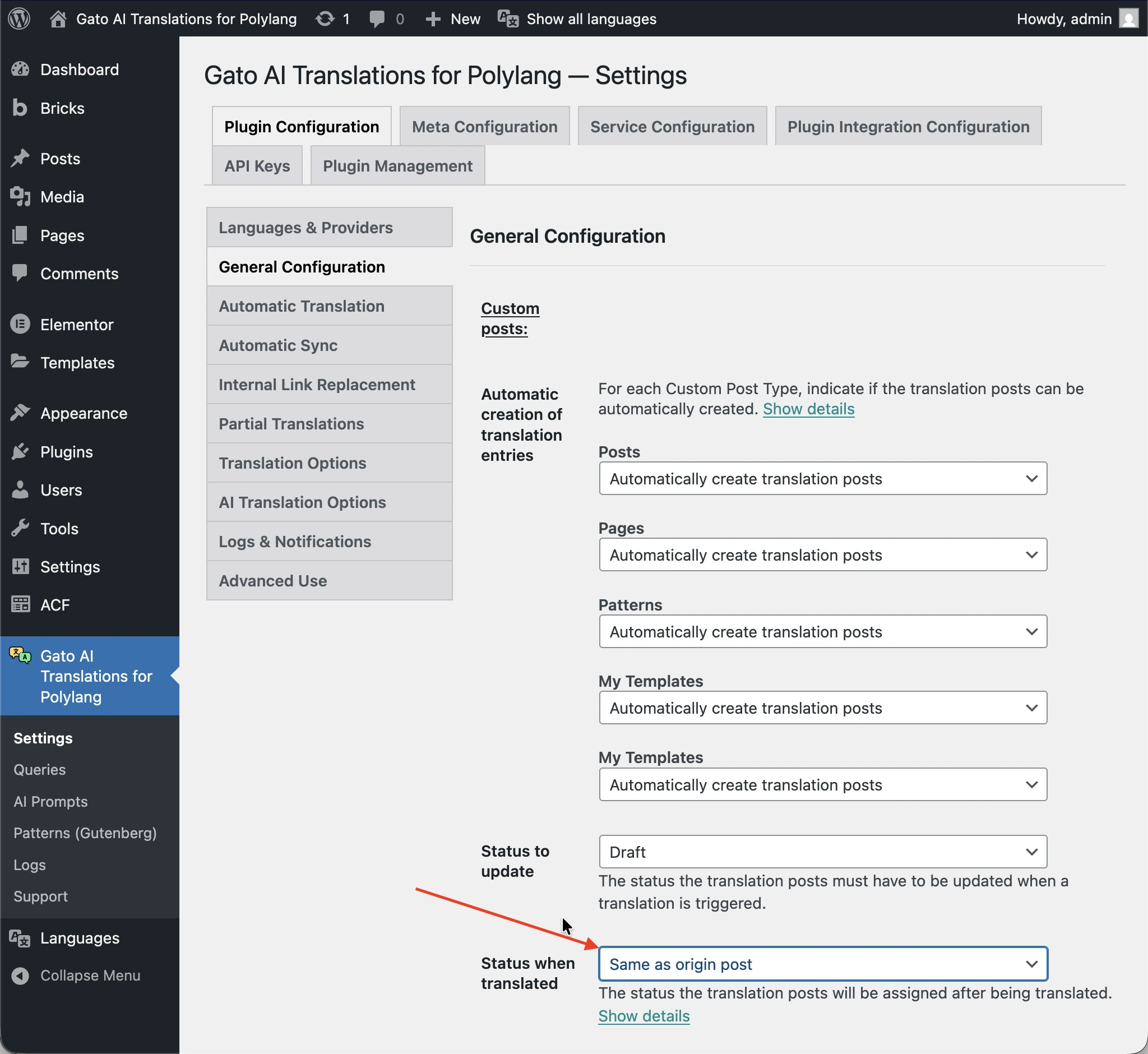
By default, translations are saved as drafts. To make translations be immediately published, go to the Settings page, under Plugin Configuration > General Configuration, and set the Status when translated option to either Publish or Same as origin post (if the origin post is already published).
Right-to-Left (RTL) Language Support
If you're translating to Right-to-Left languages like Hebrew, Arabic, Farsi, or Urdu, you need to ensure your theme properly supports RTL layouts.

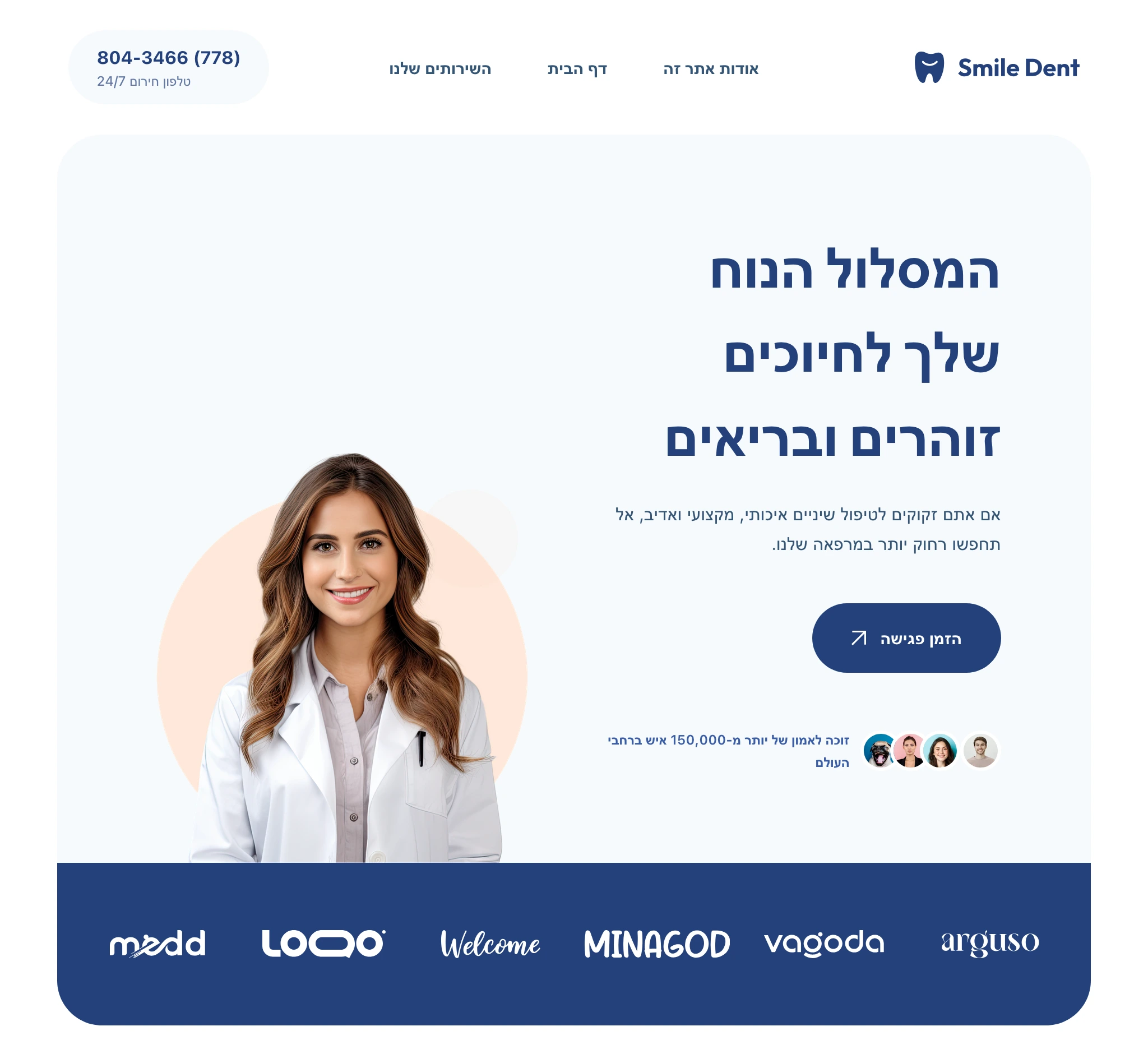
What RTL affects:
RTL languages require more than just text direction changes. Your theme needs to handle:
- Layout direction: Elements should flow from right to left
- Text alignment: Text should be right-aligned by default
- Spacing adjustments:
margin-leftshould becomemargin-right,padding-leftshould becomepadding-right, etc. - Navigation: Menus and navigation should flow RTL
- Forms: Input fields and buttons should align correctly
- Icons and images: May need mirroring or repositioning
What's already handled:
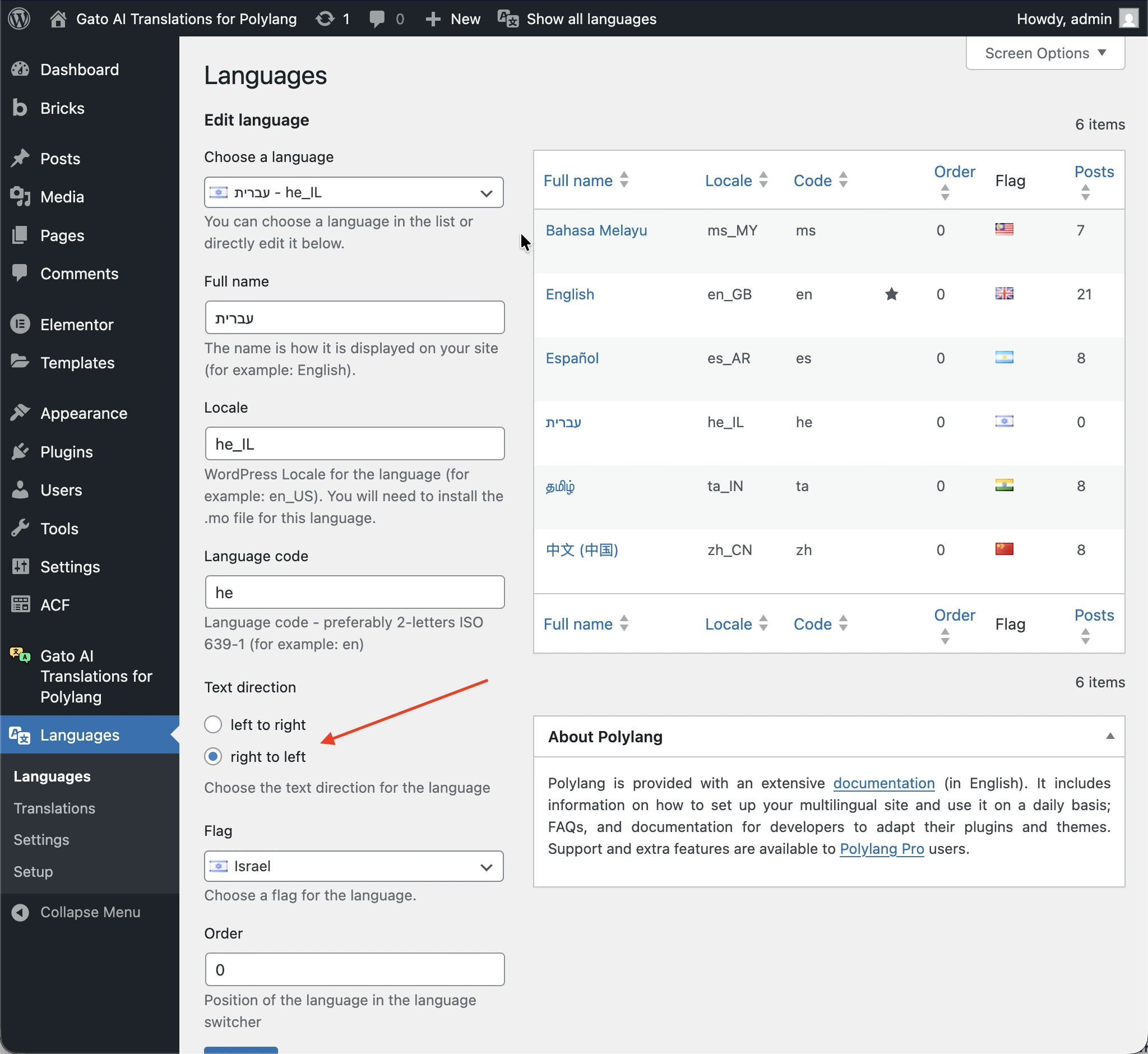
- Polylang automatically sets the correct language direction (
dir="rtl"attribute) - Content translation works identically for RTL and LTR languages
- Gato AI Translations translates content correctly regardless of text direction
What you need to check:
-
Theme RTL support: Test your theme with an RTL language to see if it handles it correctly
- Many modern themes include RTL stylesheets
- Check your theme's documentation for RTL support information
- Look for
rtl.cssor similar files in your theme
-
Custom CSS: Review any custom CSS you've added
- Hard-coded left/right values may need adjustment
- Consider using logical properties (
margin-inline-startinstead ofmargin-left)
-
Page builder compatibility: If using Elementor, Bricks, or other page builders
- Check if they support RTL layouts
- Test layouts in RTL mode before translating
If your theme doesn't support RTL well, you may need to switch to an RTL-compatible theme, add custom RTL CSS, or use a plugin that adds RTL support.
Identify 3rd-Party Plugin Content to Translate
Many WordPress plugins create their own Custom Post Types (CPTs) to store content (eg: WooCommerce products, Events Calendar events, LearnDash courses, etc.).
Before translating, you need to:
-
Identify which CPTs contain content that needs to be translated
- Review your active plugins and their CPTs
- Determine which ones need translation (not all do)
-
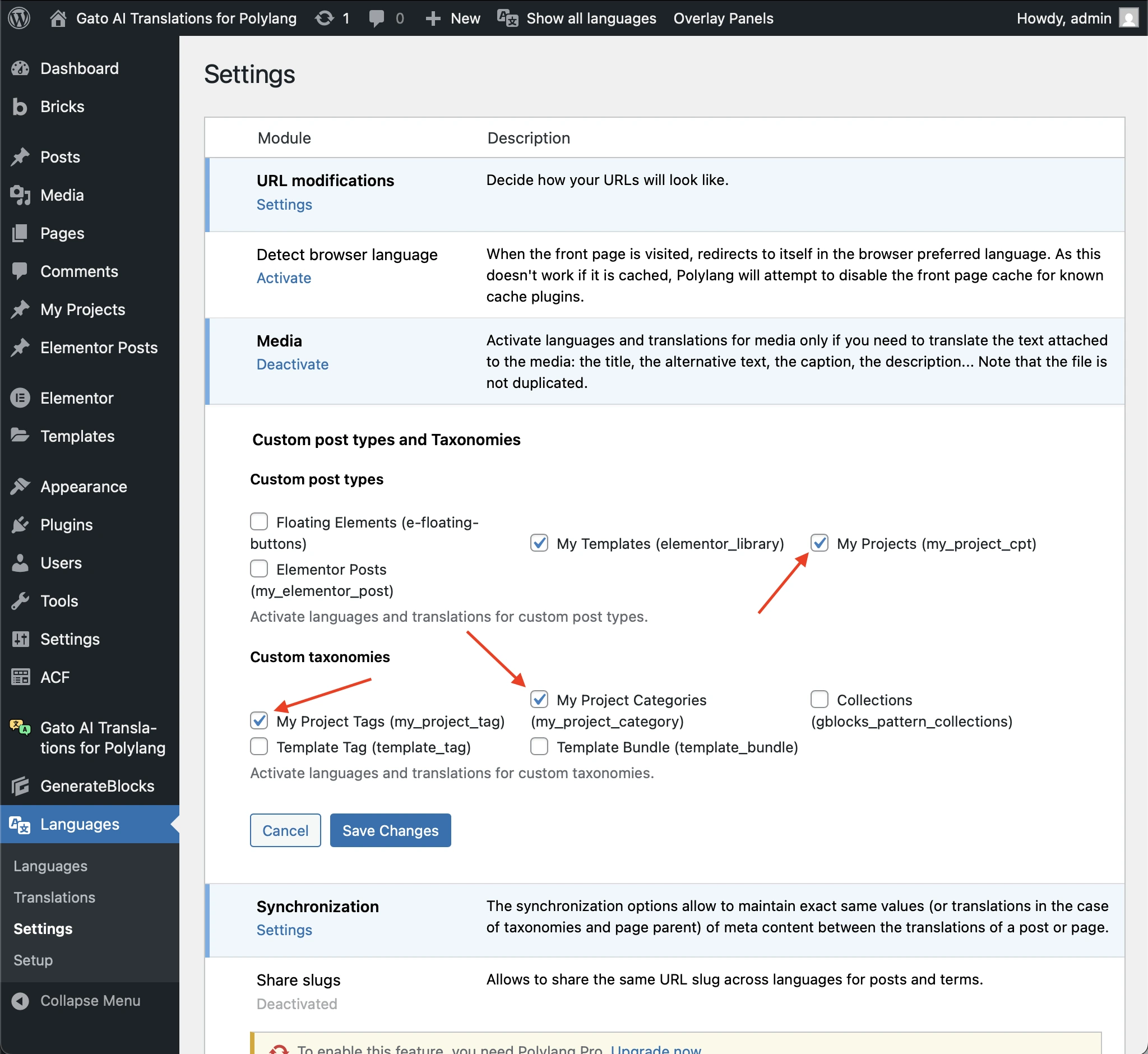
Ensure the relevant CPTs and taxonomies are translatable
- Go to Polylang's Languages > Settings > Custom post types and Taxonomies
- Enable translation for the relevant CPTs and taxonomies
Automatically Create Translation Entries for CPTs
If a CPT relies on the wp_insert_post method to create entries, you can go to the Settings page, under Plugin Configuration > General Configuration, and enable the Automatic creation of translation entries option for that CPT to have the plugin create the translation entries automatically.
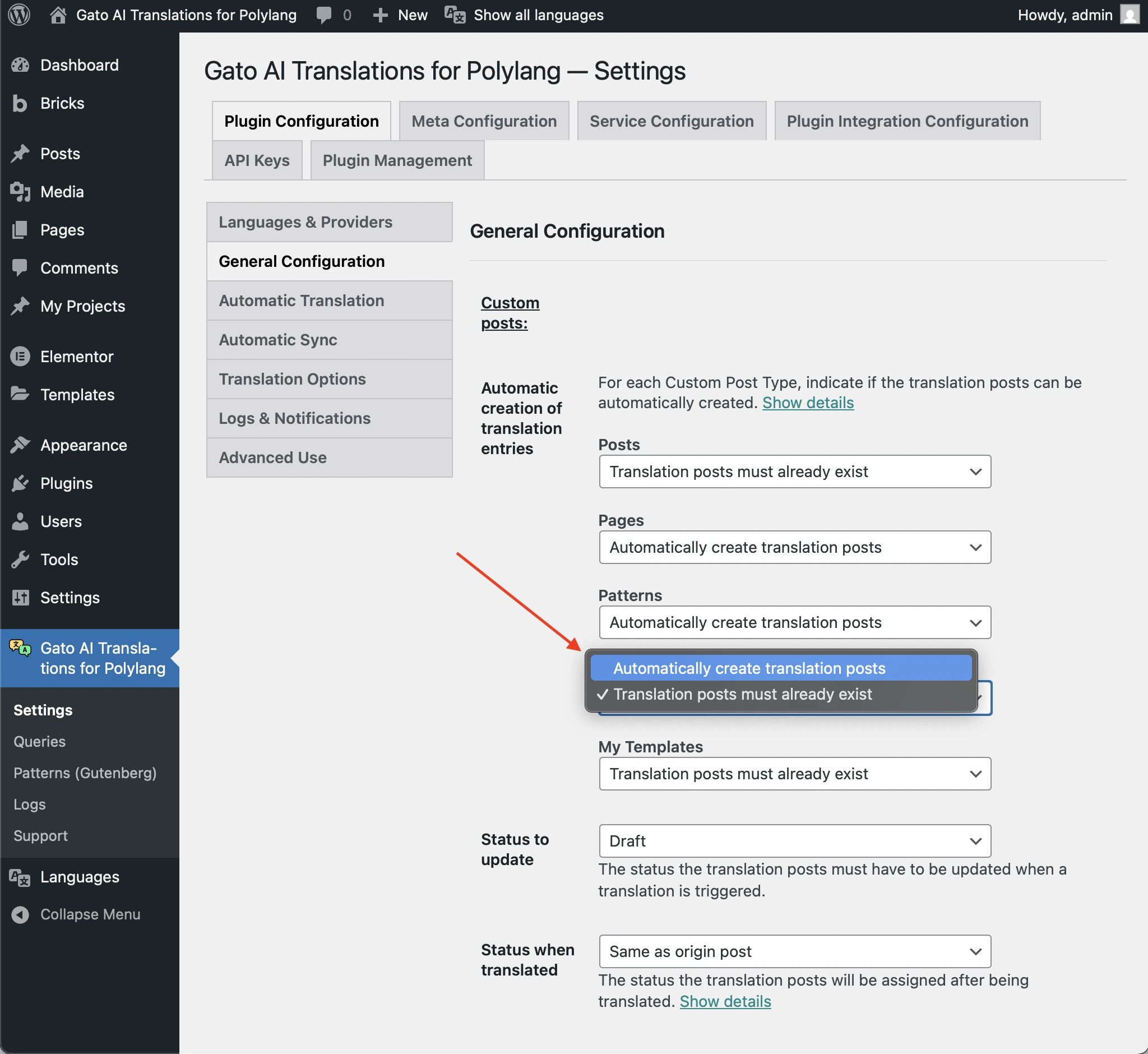
If a CPT relies on a different method than wp_insert_post, you'll need to manually create translation entries using Polylang's UI before you can translate them.
For example, with WooCommerce products, you need to create the translation entries first. Check the documentation on translating 3rd-party Custom Post Types for a demo video.
Verify Your SEO Plugin is Supported
SEO metadata (meta titles, descriptions, Open Graph tags, etc.) is crucial for multilingual SEO. Gato AI Translations for Polylang includes built-in support for the most popular SEO plugins, automatically translating all SEO-related metadata.
The plugin supports 8 major SEO plugins:
- All in One SEO
- Rank Math
- SEO Simple Pack
- SEOPress
- Slim SEO
- The SEO Framework
- WP Meta SEO
- Yoast SEO
If you are using an SEO plugin that is not listed above, you must indicate which meta keys to synchronize and translate, as corresponding to the SEO plugin you are using. Any plugin that stores its metadata in the wp_postmeta table is supported.
Choose Your AI Provider and Model
The quality of your translations depends on the AI service and model you choose.
Modern AI services (like ChatGPT, Claude, and Gemini) produce significantly better translations than legacy services (Google Translate or DeepL) because they understand context, tone, and nuance better; preserve HTML structure and formatting correctly; don't translate URLs or relative links incorrectly; maintain writing style and voice across translations; and handle technical terms and domain-specific language better.
You can choose from the following AI services:
- ChatGPT (OpenAI)
- Claude (Anthropic)
- DeepSeek
- Mistral AI
- OpenRouter (LLM aggregator providing access to all the major models, including Gemini, Grok, and Llama)
We recommend using the latest model versions available (eg: ChatGPT 5.2 over 5.0), as newer models consistently provide better translation quality.
Pro tip: You can configure different AI services for different languages. For example, use DeepSeek for Chinese (excellent quality and very affordable), ChatGPT for European languages, and Claude for complex technical content. This allows you to optimize both quality and cost.
You can use OpenRouter to access the latest AI models as soon as they are released.
Consider Customizing Your AI Translation Prompt
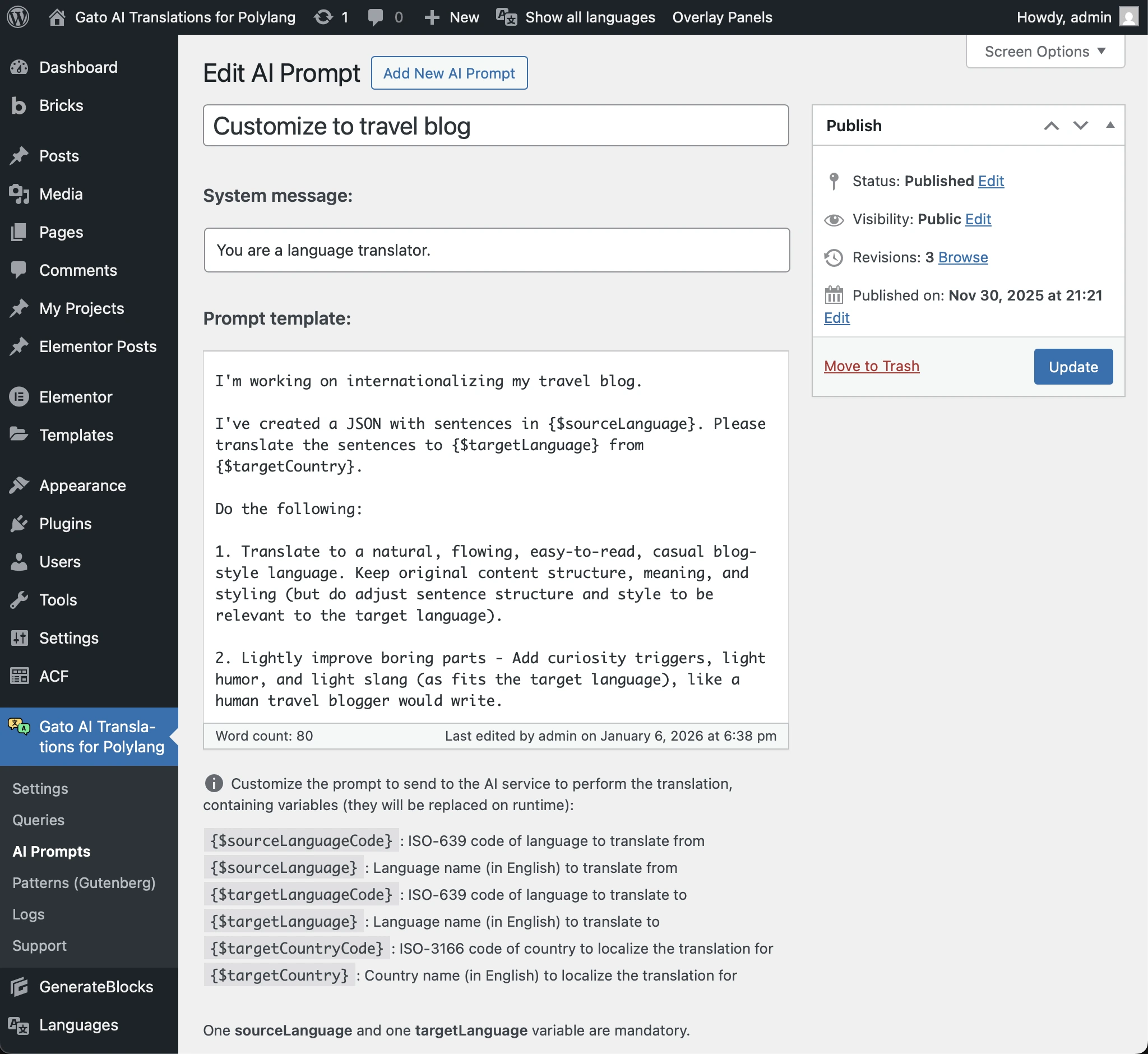
The default translation prompt works well for most content, but customizing it can improve translation quality for your specific use case.
Example:
A travel blog might customize their prompt by adding the following:
Translate to a natural, flowing, easy-to-read, casual blog-style language. Keep original content structure, meaning, and styling (but do adjust sentence structure and style to be relevant to the target language).
Lightly improve boring parts - Add curiosity triggers, light humor, and light slang (as fits the target language), like a human travel blogger would write.You can modify the default prompt, or create multiple custom AI prompts and select which one to use in the Settings:
Skip Translating Terms That Shouldn't Be Translated
Some terms should never be translated—brand names, proper nouns, technical terms, or domain-specific terminology.
You can skip translating these terms by adding instructions to your custom prompt, for example:
Do not translate the following types of terms:
- Hotel names (e.g., "Grand Hotel", "Beach Resort")
- Restaurant names
- Brand names
- Technical acronyms (API, SEO, CMS, etc.)
Keep these terms exactly as they appear in the original text.Audit Your Gutenberg Blocks
Before translating, you need to identify which blocks you're using and ensure they're supported for translation.
Gutenberg blocks supported out of the box:
- All WordPress core blocks: Paragraph, Heading, List, Quote, Image, Gallery, etc.
- 3rd-party blocks: Blocks from plugins Yoast SEO and GenerateBlocks
If you are using an unsupported block which contains strings that must be translated, you can either:
- Add an integration to translate the block, or
- Replace it with a supported block (for example, replace a custom testimonial block with a supported alternative).
Need help? We can integrate custom blocks for you. Check out our Custom Services if you'd prefer to have experts handle the integration.
Note: there are blocks that cannot be translated.
If you need to replace an unsupported block, you'll want to find all posts that use it. Check the tutorial on finding posts containing a certain block for methods to identify where specific blocks are used.
Audit Your Elementor Widgets
If you're using Elementor page builder, you need to audit which widgets you're using and ensure they're supported for translation. The process is similar to auditing Gutenberg blocks, but specific to Elementor widgets.
All core Elementor widgets are supported out of the box.
If you have unsupported widgets:
- Add an integration to translate the widget, or
- Replace it with a supported widget
Audit Your Bricks Elements
If you're using Bricks page builder, you need to audit which elements you're using and ensure they're supported for translation. The process is similar to auditing Gutenberg blocks, but specific to Bricks elements.
All core Bricks elements are supported out of the box.
If you have unsupported elements:
- Add an integration to translate the element, or
- Replace it with a supported element
Handle Additional User Data Translation
Polylang can handle the biography field for WordPress user profiles, but if you have additional user data stored in custom fields (via ACF, Meta Box, or other means), you'll need a special approach.
If you have user data that needs translation (e.g., job titles, qualifications, descriptions, etc.), you'll need to create separate fields for each language.
-
Create separate fields for each language
- Using ACF or Meta Box, create fields like:
Qualification ENQualification FRQualification DE- etc.
- Using ACF or Meta Box, create fields like:
-
Update your theme to display the correct field
- Modify your theme templates to check the current language
- Display the appropriate field based on the active language
- Example PHP code:
$current_lang = pll_current_language(); $qualification = get_field("qualification_{$current_lang}", 'user_' . $user_id); echo $qualification;
-
Manually populate fields
- After translating content, manually update user profile fields
Avoid Duplicate Tags Across Languages
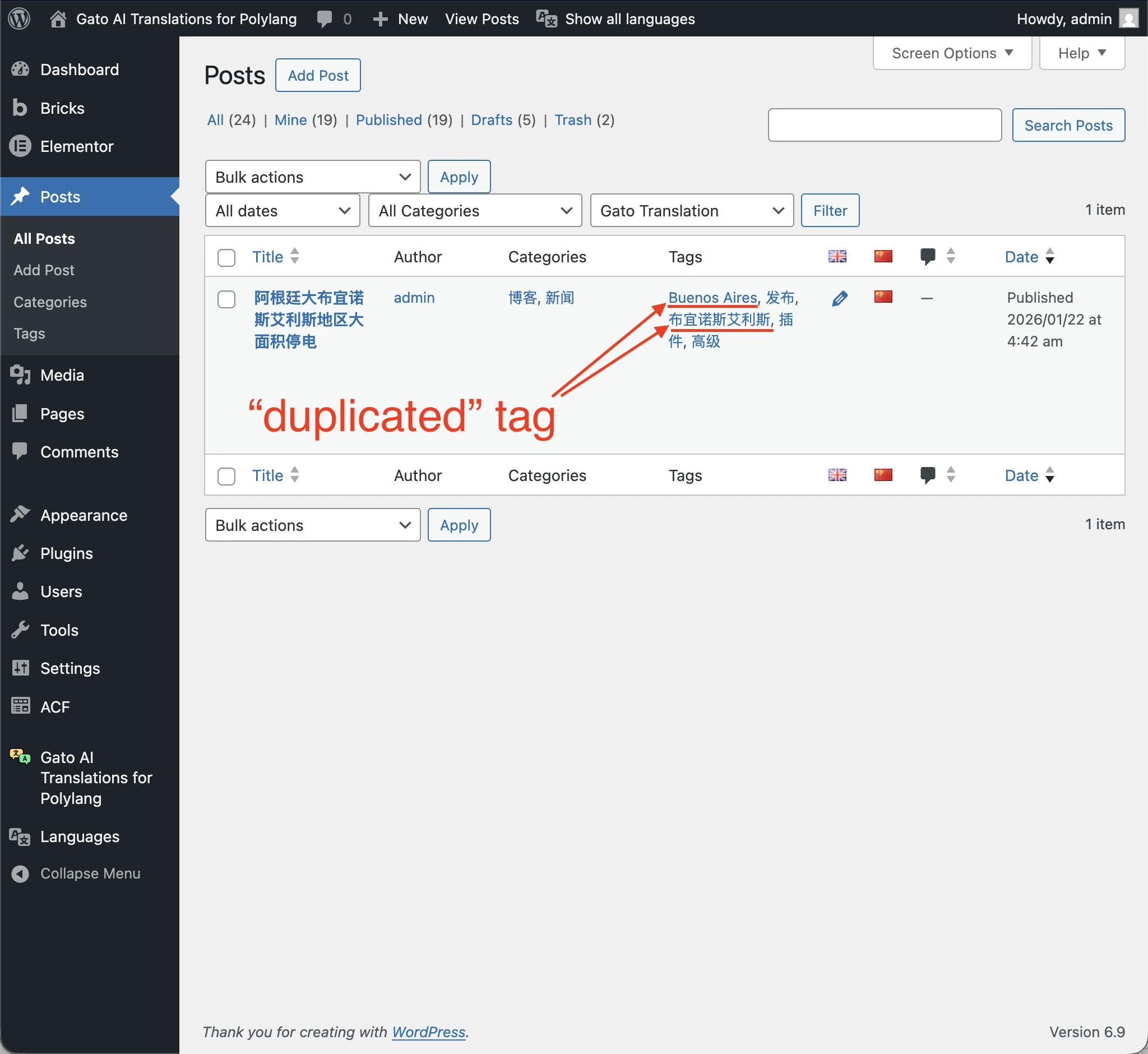
Our content may have tags that represent the same concept in two different languages. When these tags are translated, they can create duplicates or conflicts.
For example, if you have a Chinese website being translated to English, and you have both a tag 布宜诺斯艾利斯 (Buenos Aires in Chinese) and a tag Buenos Aires in English, when translating to English, both tags become buenos-aires. This creates a duplicate tag situation.
How to fix before translating:
-
Audit your tags
- Review all tags in your origin language
- Identify tags that might be duplicates of tags in other languages
- Look for tags that represent the same concept but in different languages
-
Consolidate tags
- Choose one language version to keep (typically your origin language)
- Merge or remove duplicate tags
- Update posts to use the consolidated tag
-
Clean up before translating
- Ensure your origin content only has tags in the origin language
- Remove any tags in target languages from origin content
- This prevents conflicts during translation
Handle Elementor Theme Builder Templates
If you're using Elementor's Theme Builder to create global templates (headers, footers, single post templates, archive templates, etc.), it's important to understand how these templates are handled during translation.
What gets translated:
- Menus: Menu items are replaced with translated menu versions
- Dynamic content: Content pulled from posts/pages gets translated (since the source content is translated)
What doesn't get translated:
- Hardcoded text: Any text directly added to the template (not from dynamic content) is NOT translated
- Widget text: Text in widgets like headings, paragraphs, buttons, etc. remains in the origin language
- Custom HTML: Any custom HTML or code blocks remain untranslated
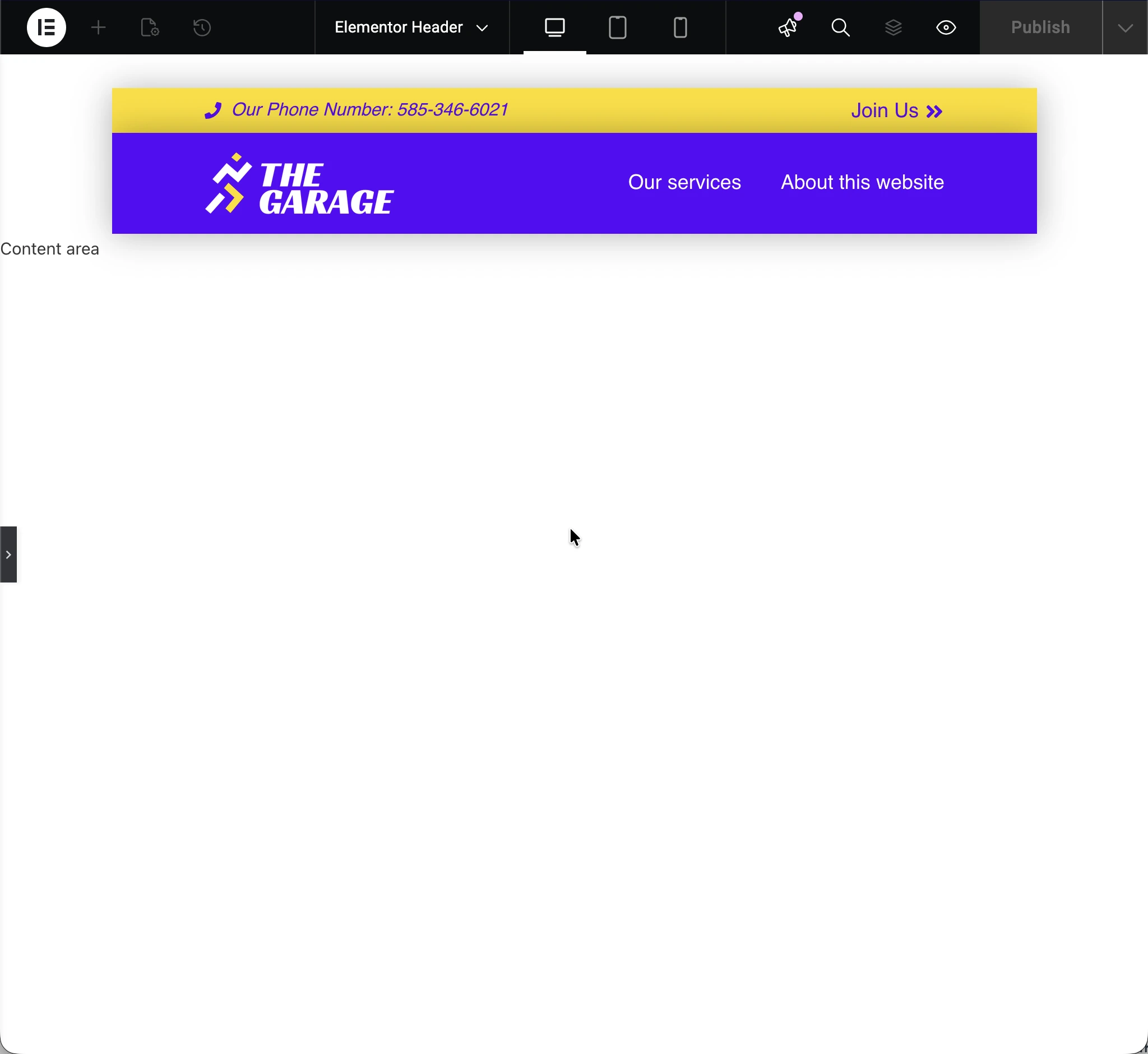
Example:
This Elementor header template contains hardcoded text ("Our Phone Number:"):
Solution:
Design templates to use only:
- Menus (which get replaced automatically)
- Images (which are language-agnostic)
- Dynamic content (which comes from translated posts)
- Avoid adding any hardcoded text, headings, or descriptions directly in templates
This ensures your site's global elements (headers, footers, etc.) work correctly across all languages.
Configure Advanced Custom Fields (ACF)
If you're using Advanced Custom Fields (ACF), you need to configure how each field should be handled during translation. ACF fields can contain various types of content, and each type may need different handling.
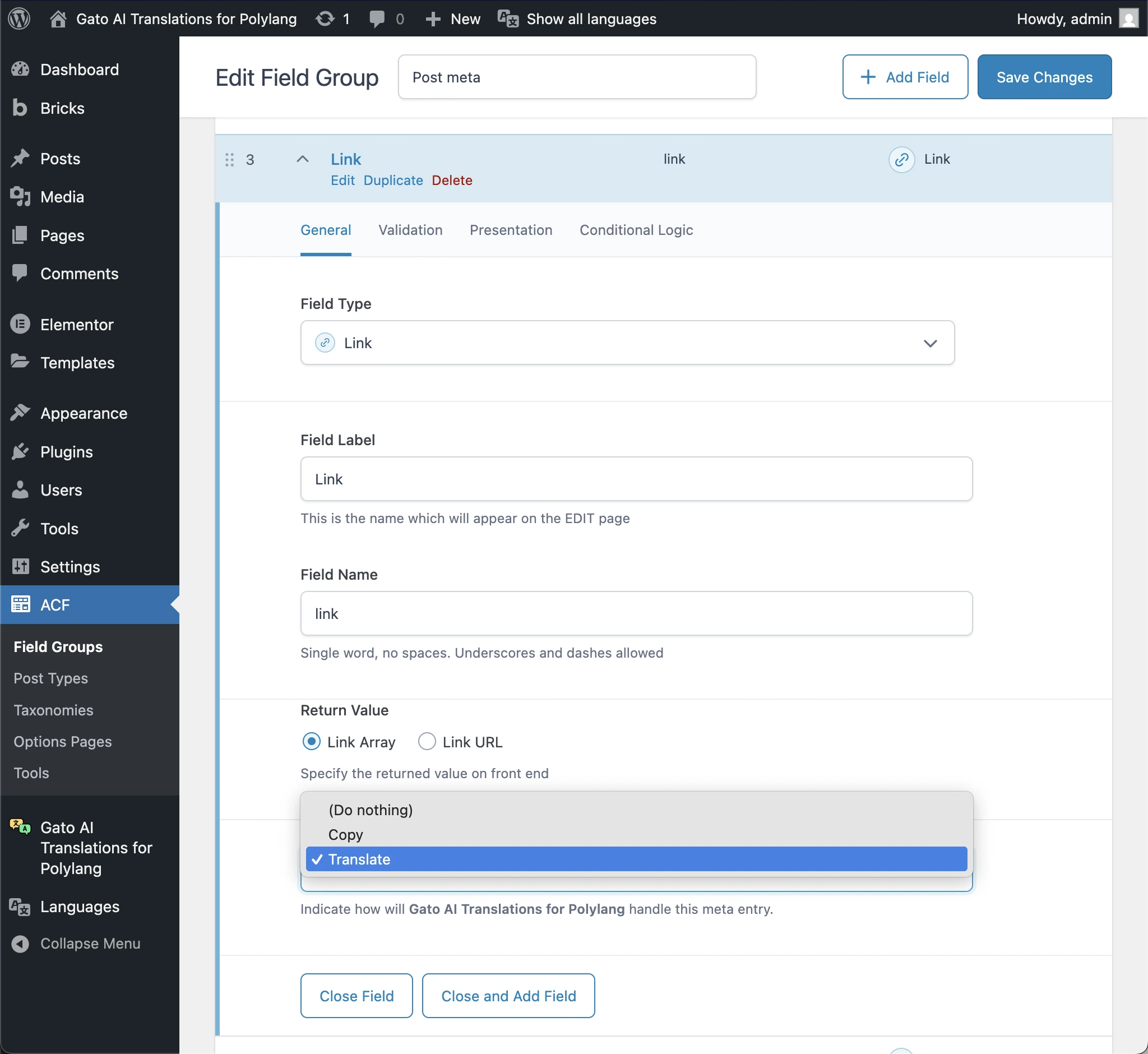
Under the Gato Translate section, ACF fields can be set to one of these options:
-
(Do nothing): The field is skipped from translation or sync
-
Translate: The field content is translated to the target language
- Use for: Text fields, textarea fields, WYSIWYG fields, and any field containing translatable text
-
Copy: The field value is copied as-is to the translation (not translated)
- Use for: Numbers, dates, checkboxes, true/false fields, and any field that shouldn't be translated
-
Translate Reference: The field references another entity (post, page, user, etc.), and the reference is updated to point to the translated version
- Use for: Post Object, Page Link, Relationship, User, and Taxonomy fields
Field Groups can apply to more than just posts and pages. They can also apply to:
- Categories
- Tags
- Media items
- Users
- Custom taxonomies
- Custom post types
Make sure to configure translation settings for field groups that apply to these entities as well!
If you're using Polylang Pro, you must also disable its ACF translation features to allow Gato AI Translations to handle the translation instead.
Configure Meta Box
If you're using Meta Box (another popular custom fields plugin), the configuration process is similar to ACF. Meta Box fields also need to be configured for translation, copying, or reference translation.
Under the Gato Translate section, Meta Box fields can be set to one of these options:
- (Do nothing): The field is skipped from translation or sync
- Translate: Field content is translated
- Copy: Field value is copied as-is
- Translate Reference: Field reference is updated to point to translated entity
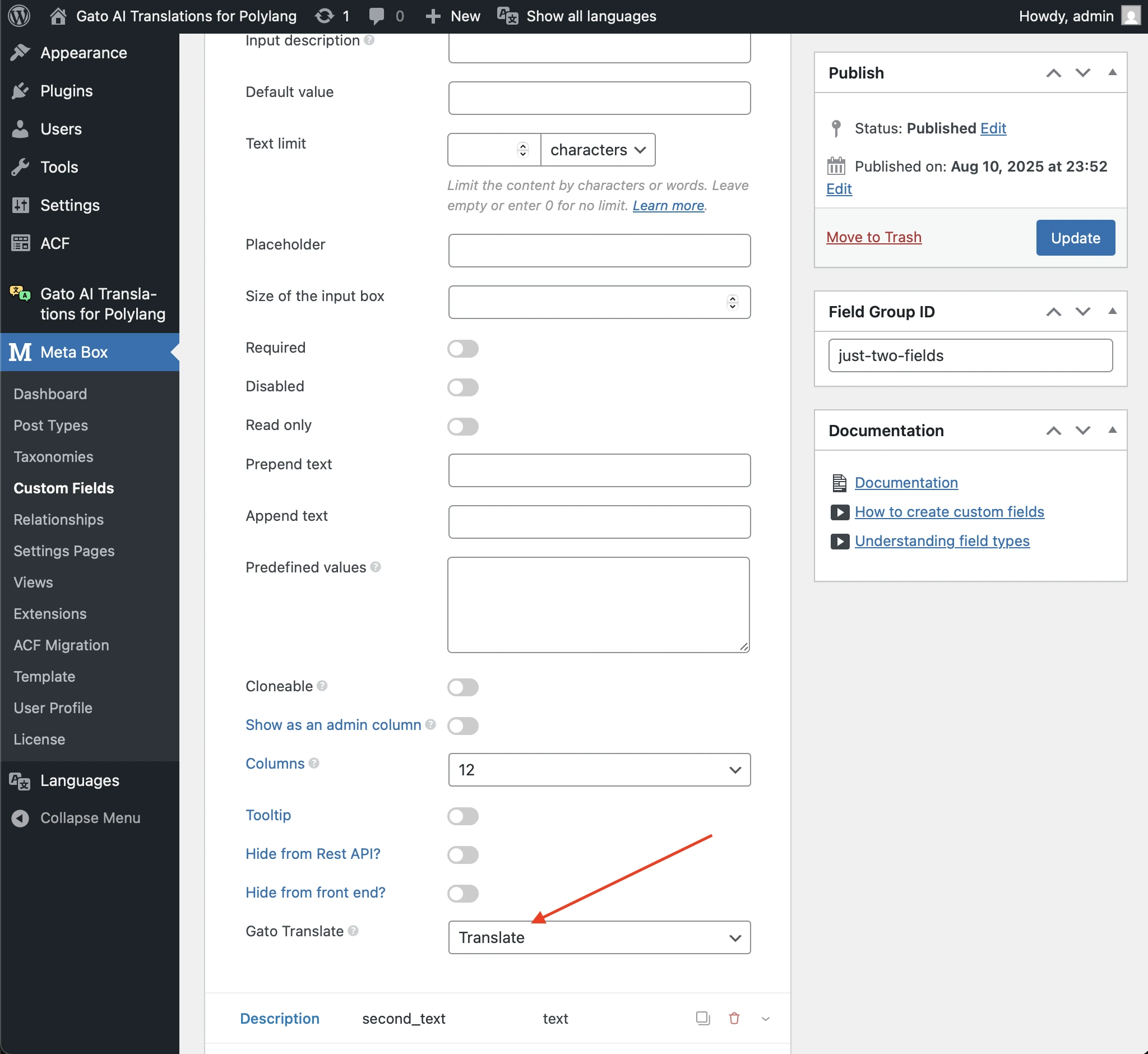
You must also disable Polylang's Meta Box translation features to allow Gato AI Translations to handle the translation instead.
Configure Custom Meta Fields
Beyond ACF, Meta Box, and SEO plugins, your site may have other custom meta fields from:
- Custom code
- Other plugins
- WordPress custom fields (the basic Custom Fields metabox)
These meta fields need to be configured manually in the plugin settings.
Identifying custom meta keys:
-
Export your content
- Go to Tools > Export in WordPress
- Export all content types you plan to translate
- This creates an XML file with all your content and metadata
-
Analyze the export file
- Open the XML file in a text editor
- Search for
<wp:postmeta>tags - List all unique meta keys
-
Filter out known fields
- Remove ACF fields (typically prefixed with your field group name)
- Remove Meta Box fields
- Remove WordPress core fields (e.g.,
_edit_last,_wp_old_slug,_thumbnail_id) - Remove SEO plugin fields (if using a supported SEO plugin)
-
Identify what remains
- These are your custom meta fields
- Determine what each field contains and how it should be handled
Determining translation needs:
For each custom meta field, determine:
- Translate: Contains translatable text (titles, descriptions, content)
- Copy: Contains data that shouldn't be translated (IDs, numbers, settings)
- Translate Reference: Contains entity IDs that should point to translated versions
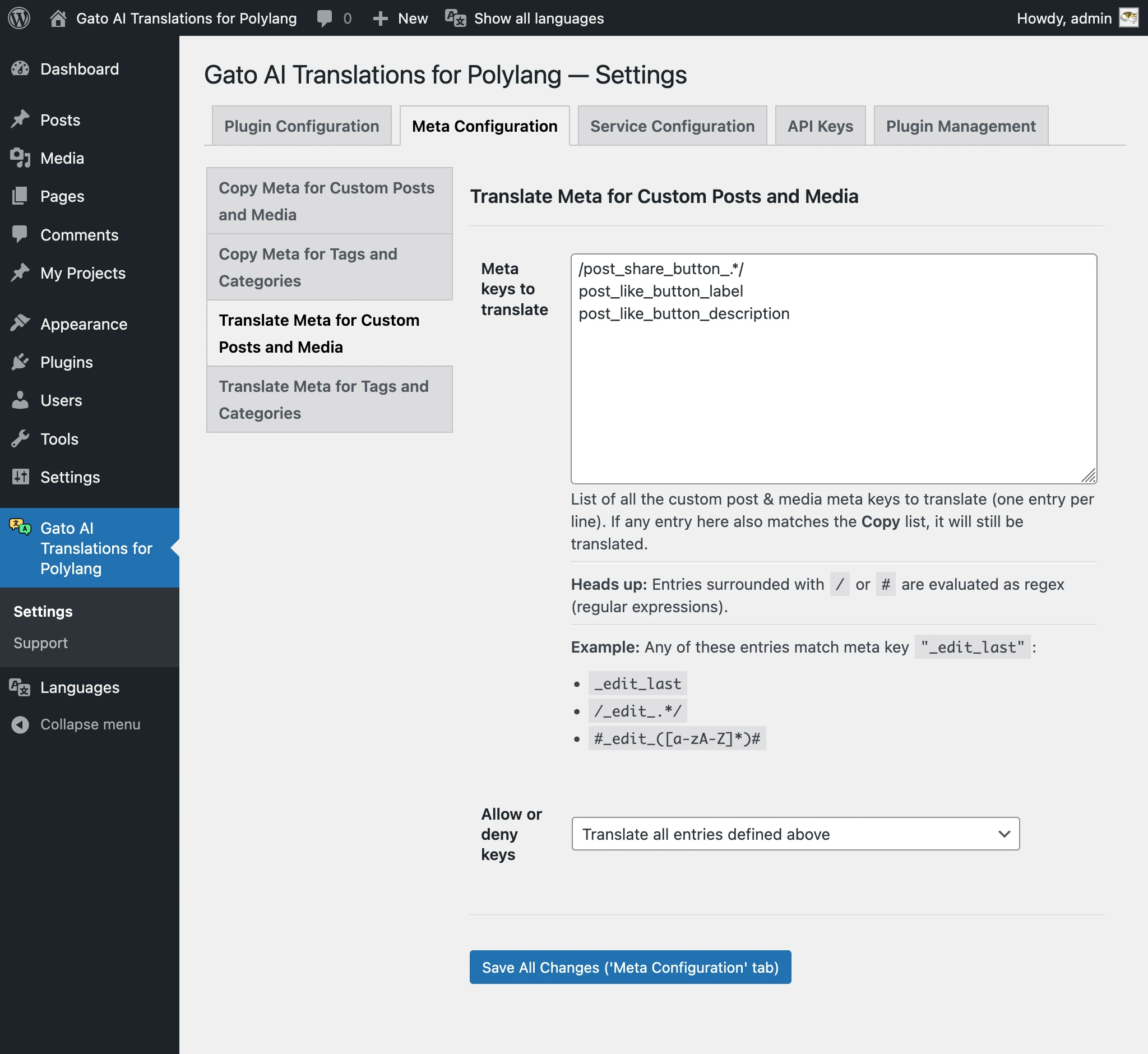
Configuring in the plugin:
- Go to the Settings, under the Meta Configuration tab
- Choose the translation option (Translate/Copy/Translate Reference)
- Add the custom meta key names, using an exact match or a regex pattern
Execute the Translation Process
Now that all preparations are complete, it's time to execute the translations.
Test the Process First
Before diving into translating your entire website, it's crucial to test the process on a small scale first. This approach will save you time and prevent issues from being replicated across all your content.
Here's the recommended testing workflow:
-
Start with a single post and one language
- Choose a representative post that includes various content types (text, images, links, etc.)
- Translate it to just one target language that you understand well
- Validate the translation in deep detail: check every block, every link, every image, and every piece of metadata
- If you discover any issue (e.g., a block wasn't translated, a link wasn't replaced, formatting was broken), fix it before proceeding. The same issue will be replicated for all languages if you don't address it now.
-
Expand to a few more posts
- Once the first translation is perfect, translate 3-5 more posts to the same language
- Validate each one thoroughly
- This helps you identify any patterns or recurring issues
-
Test with additional languages
- If you're translating to multiple languages, test with one more language to ensure everything works across different language pairs
-
Only then proceed with bulk translation
- Once you're confident everything works correctly, you can proceed to translate the rest of your website
This incremental approach ensures that any configuration issues or content problems are caught early, when they're easy to fix.
Translation order
The order in which you translate different content types matters, especially when content references other content.
Translate content in this specific order to avoid reference issues:
-
Users
- User descriptions may be included in blocks
-
Taxonomies (Tags/Categories)
- Tags and categories (and custom taxonomies) are often referenced by posts, so they need to exist before posts are translated
-
Media
- Media items (images, videos, documents) are referenced by posts as featured images or gallery images, so translate them before posts
-
Custom Post Types
- Translate posts, pages, and other CPTs
- Important: If one CPT references another, translate in reverse dependency order
- For example: If posts use Reusable Blocks, translate Reusable Blocks first, then Posts
-
Menus
- Translate menus last, as they reference posts, pages, and categories
Two-pass translation
If you've enabled internal link replacement or entity reference translation, you may need to translate in two passes:
Pass 1: Translate properties only
- Configure the translation to exclude content and meta, ie. translate properties only (title/name and slug)
- Execute translation
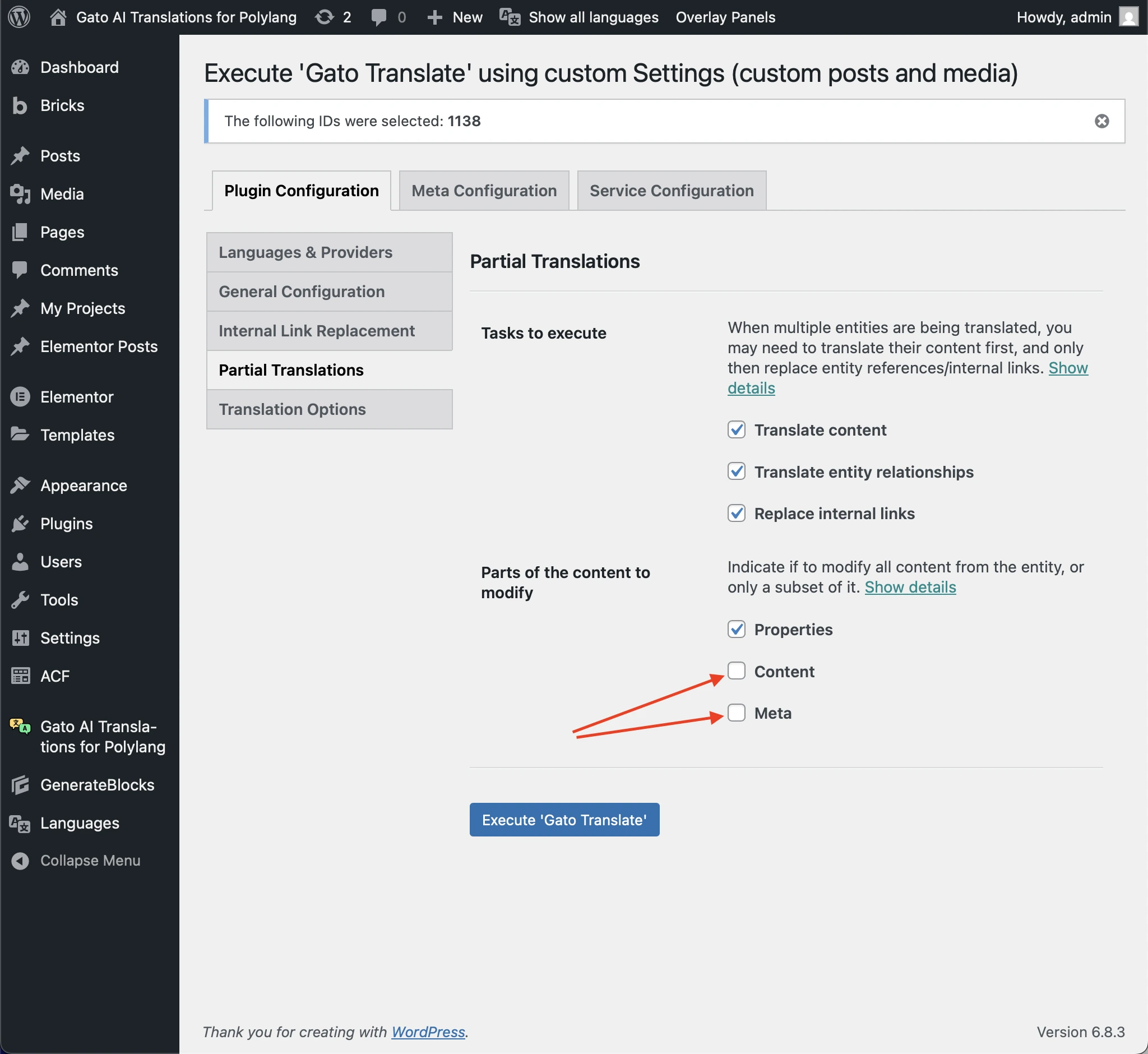
After executing the first pass, the translated posts will be created with their translated URLs and IDs, allowing internal link URLs and entity reference IDs to be resolved to the target language.
Pass 2: Translate Content and Meta only
- Configure the translation to translate content and meta only (ie. exclude properties)
- Execute translation again
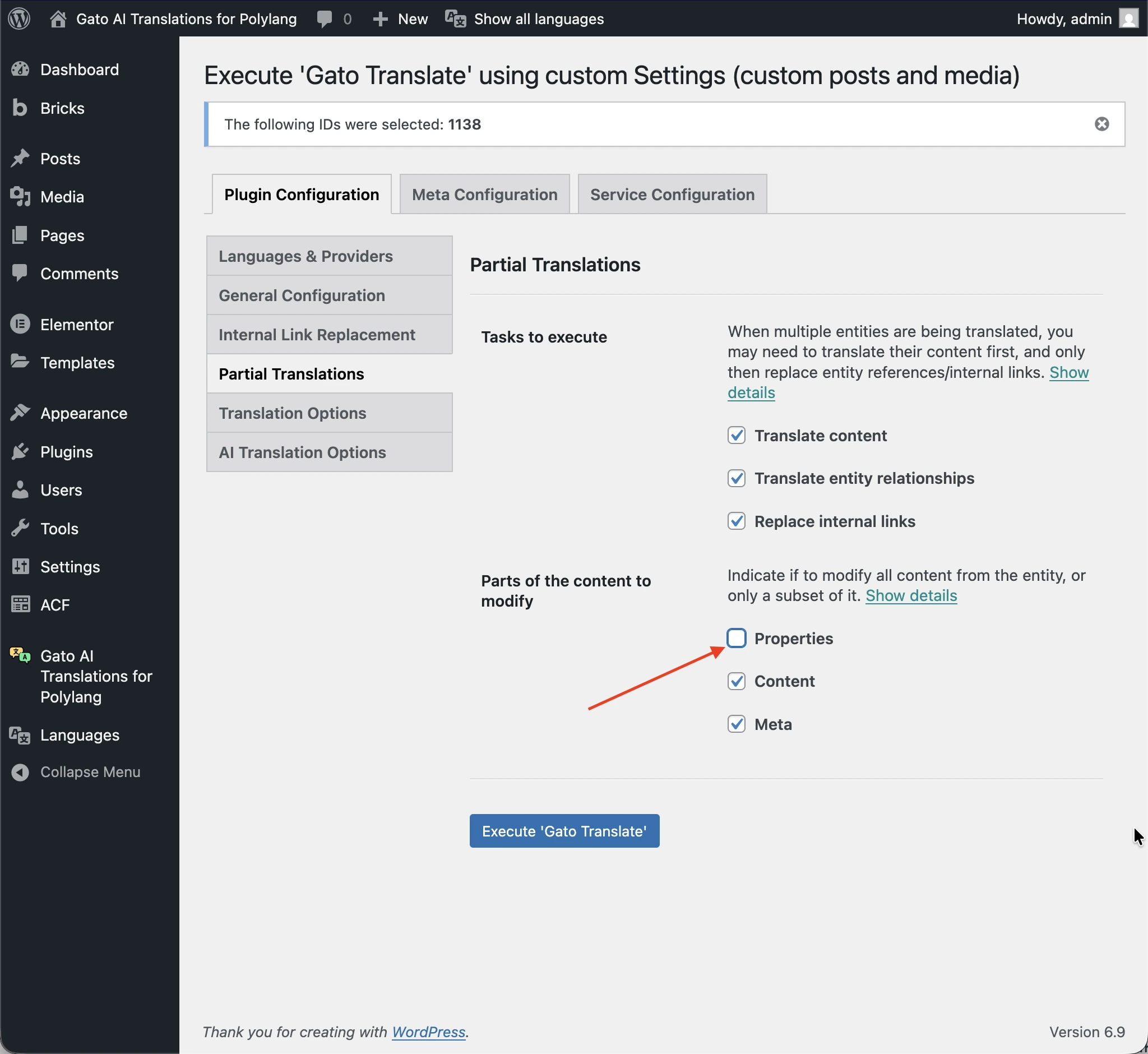
After executing the second pass, the remaining content and meta will be translated, and internal link URLs and entity reference IDs will be replaced with the translated versions.
How to execute translations
Option 1: WordPress Admin (Bulk Actions)
- Go to the content list (Posts, Pages, Media, etc.)
- Select the items you want to translate
- Choose Gato Translate from the bulk actions dropdown
- Click Apply
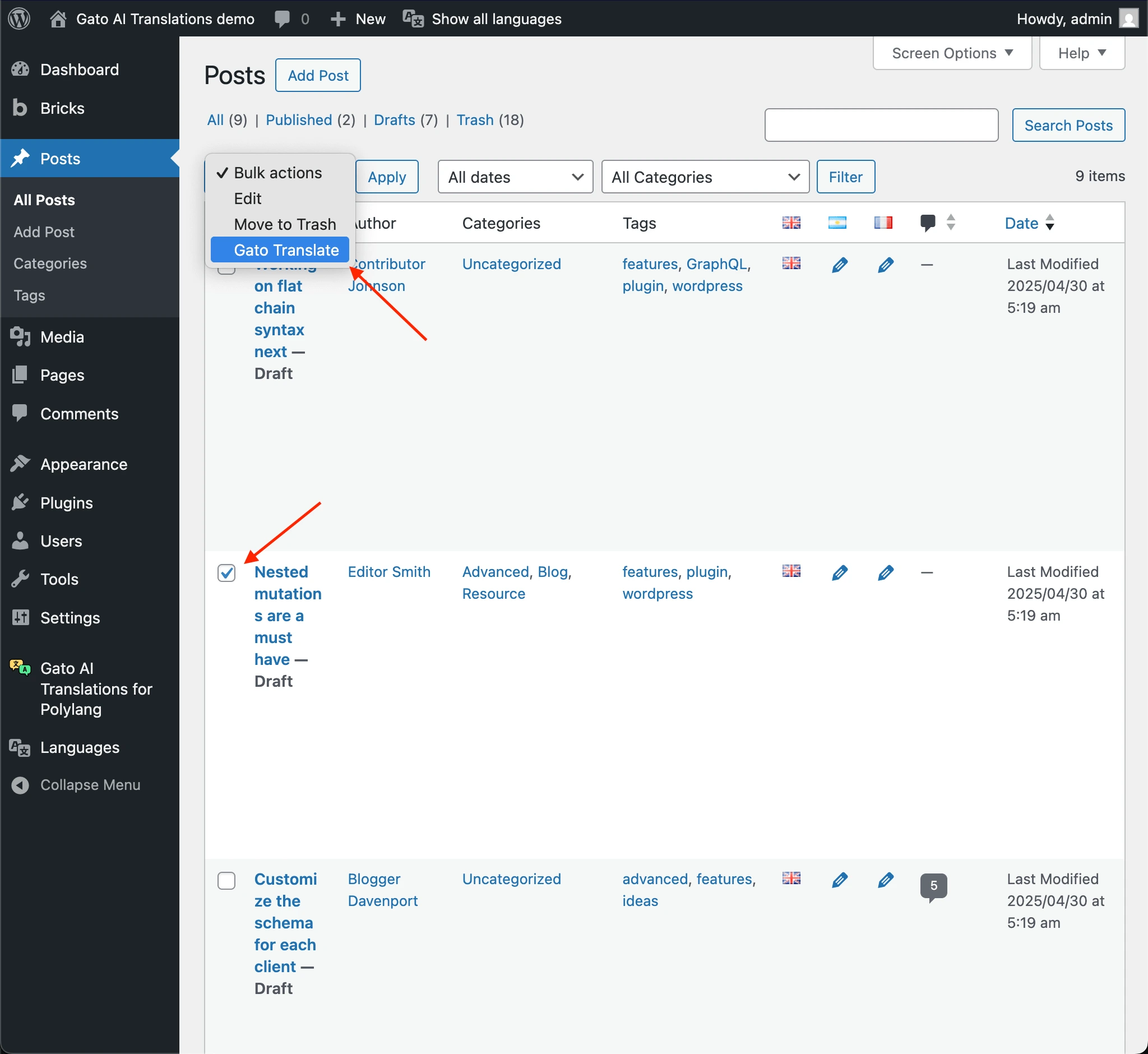
Menus are translated differently: they are translated automatically when you save them in the menu editor.
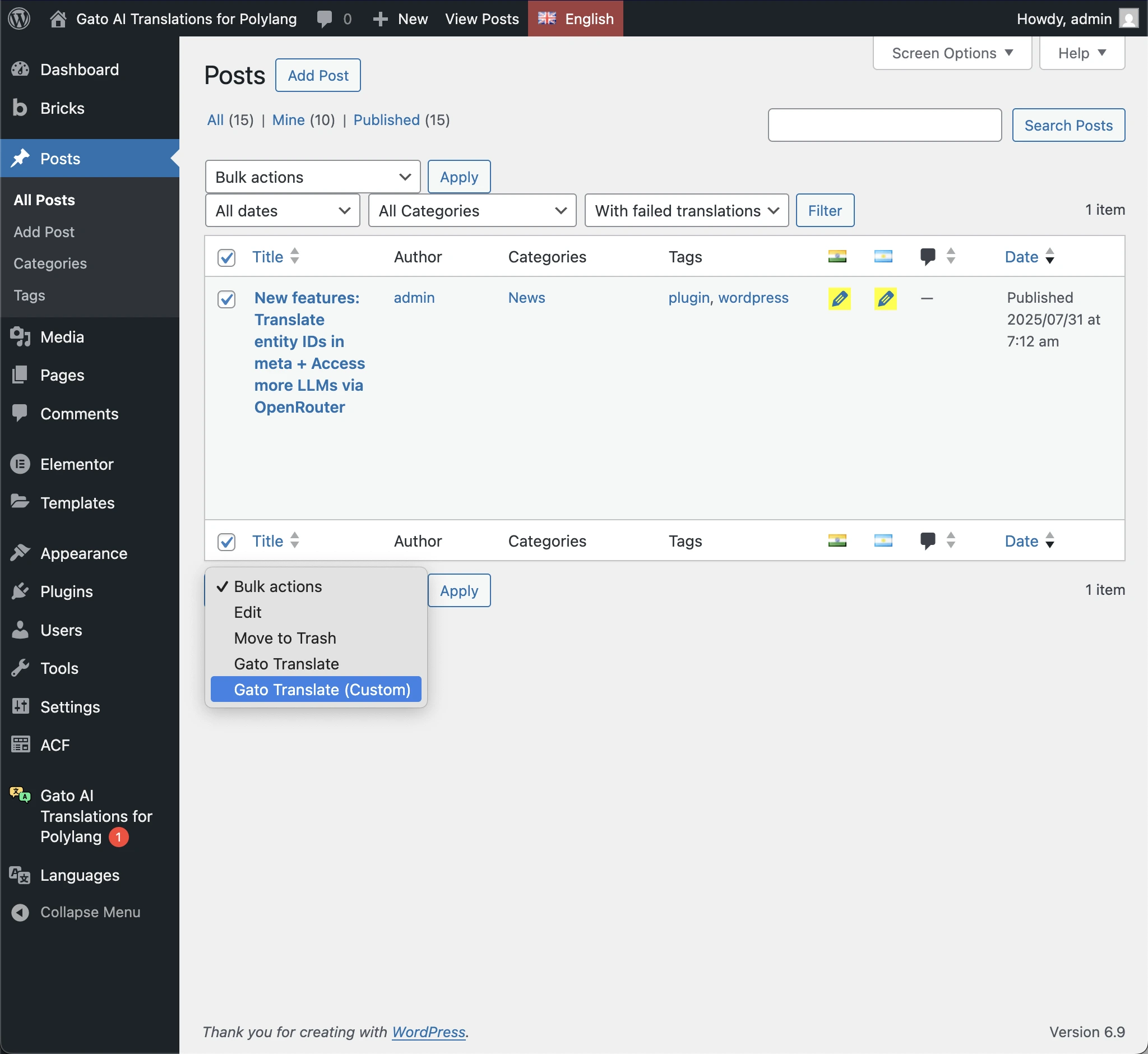
Alternative: Gato Translate (Custom)
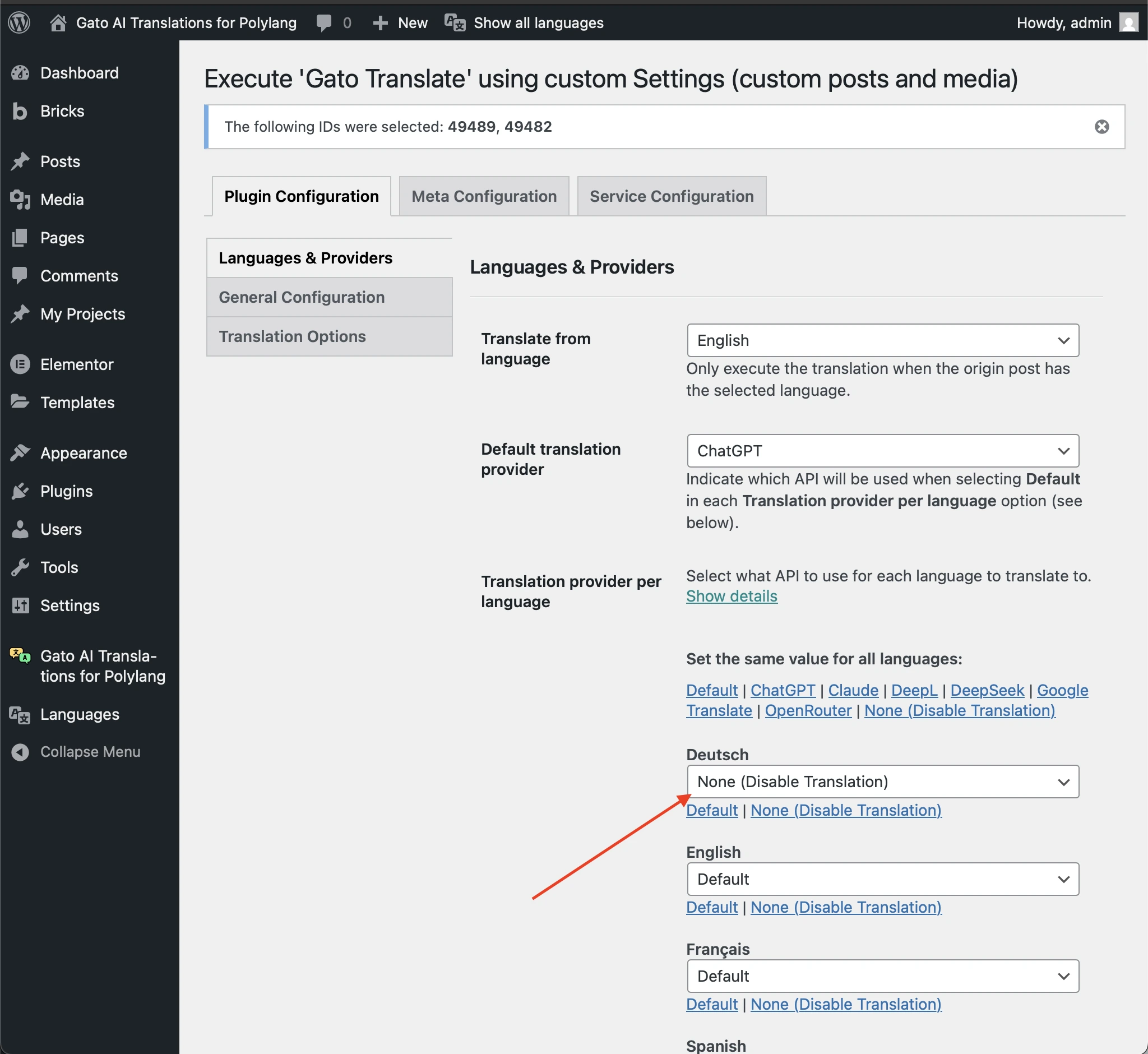
For more control, use Gato Translate (Custom) which allows you to override settings for that specific translation run:
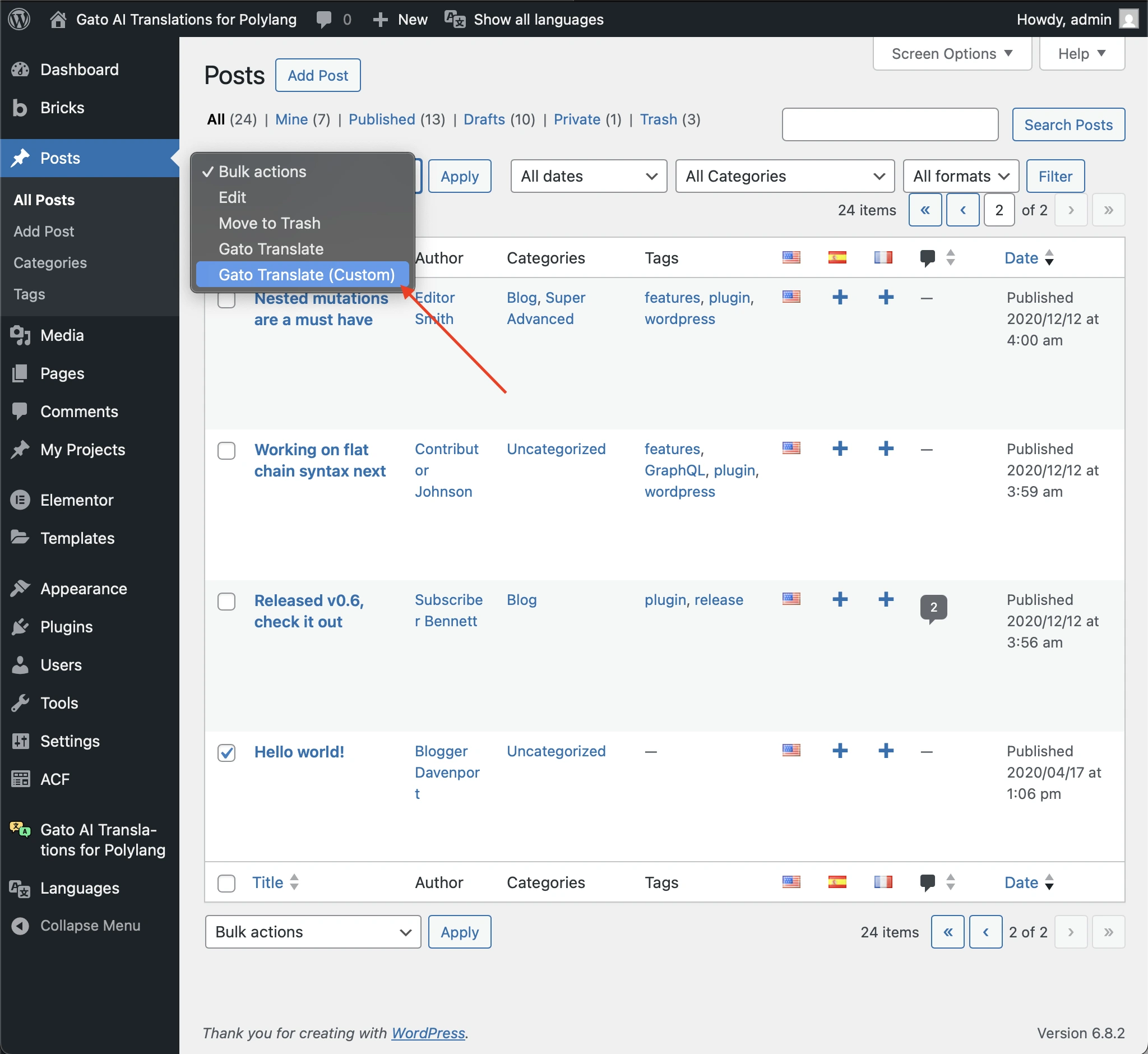
This opens a custom settings page where you can provide specific options for that translation run:
Option 2: WP-CLI (for large batches)
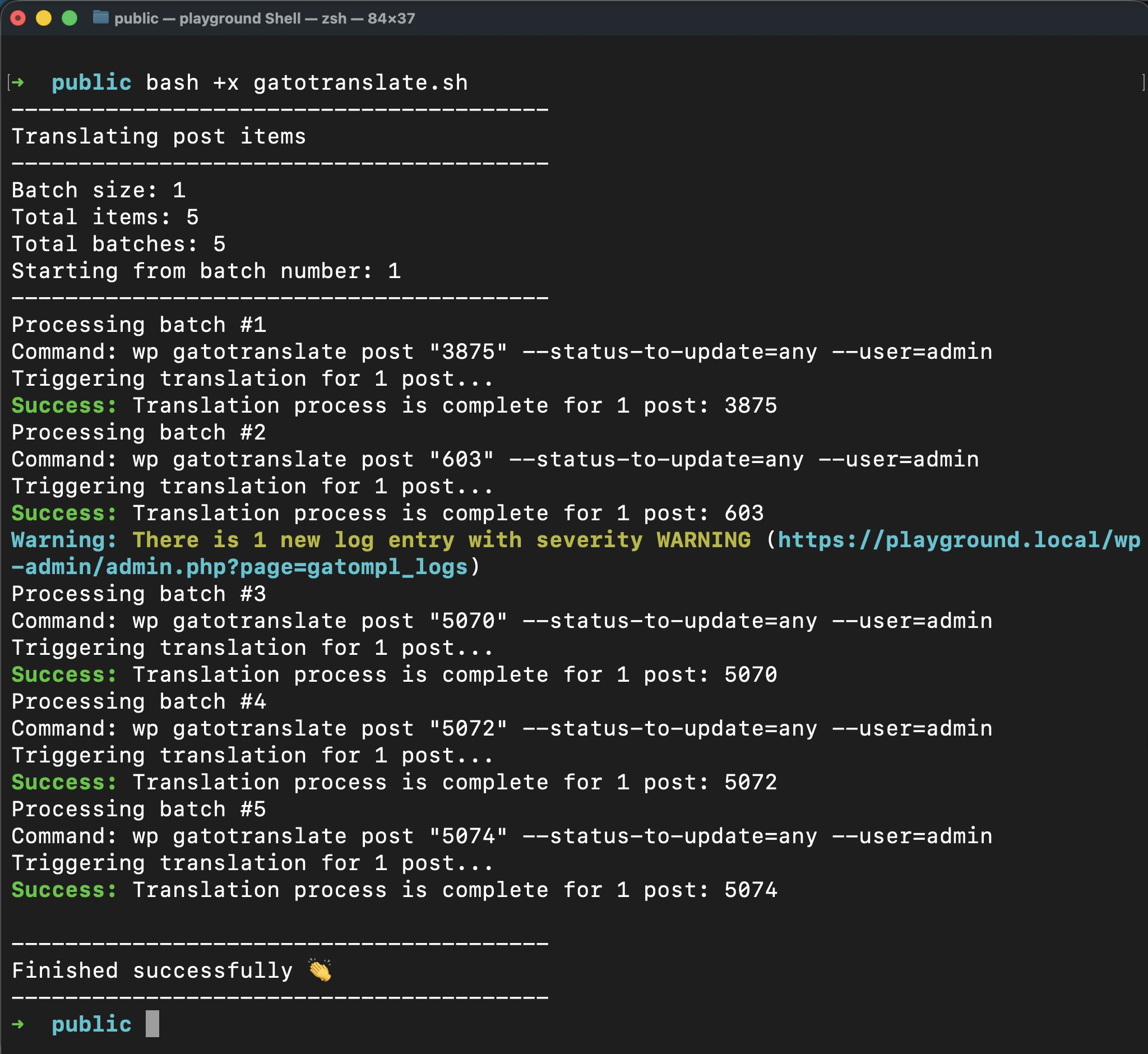
For large websites with hundreds or thousands of items, WP-CLI is a convenient alternative.
You can run translations in batch via command line, then you can execute the translations in the background, while you're working on something else.
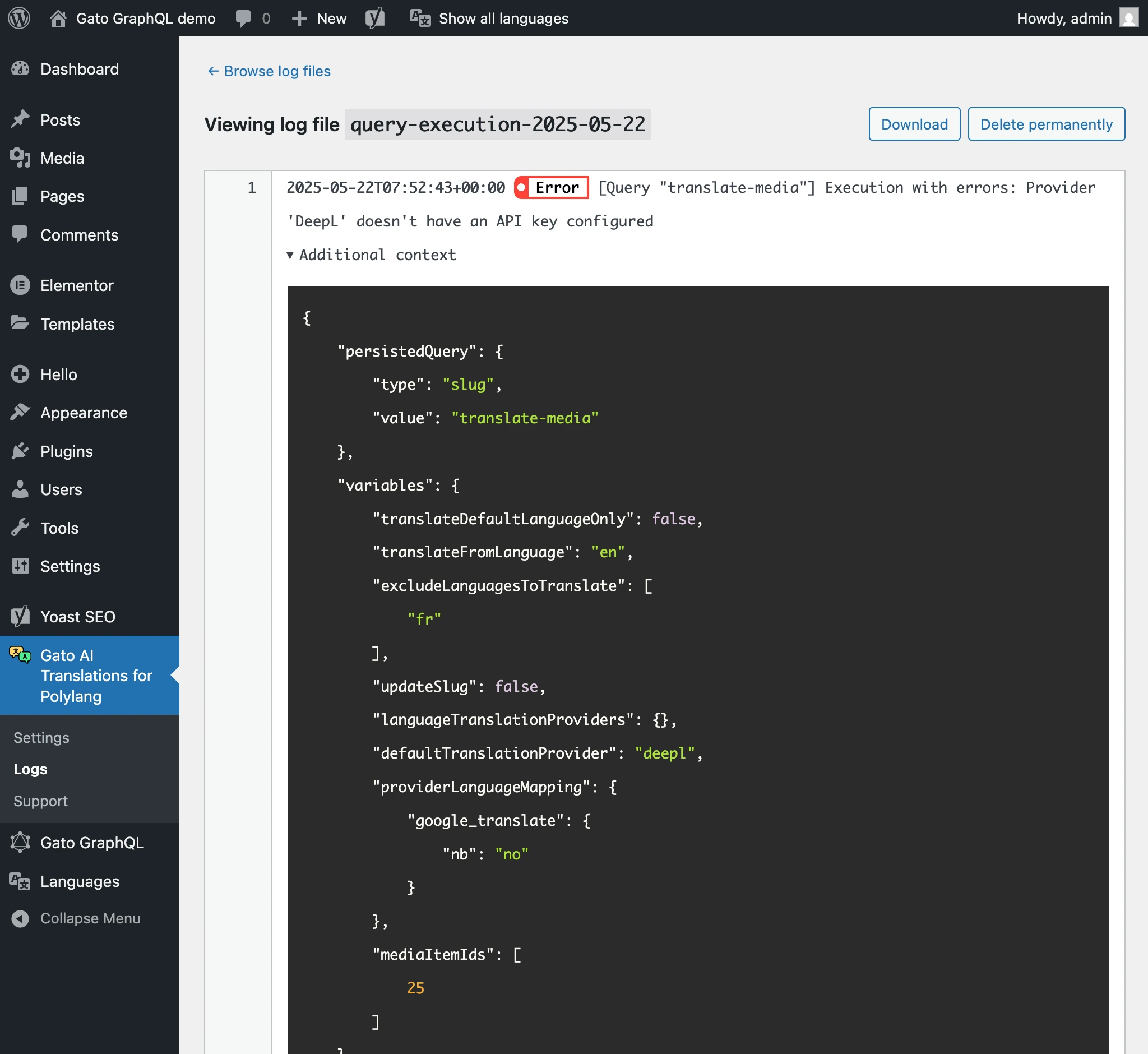
Checking translation logs
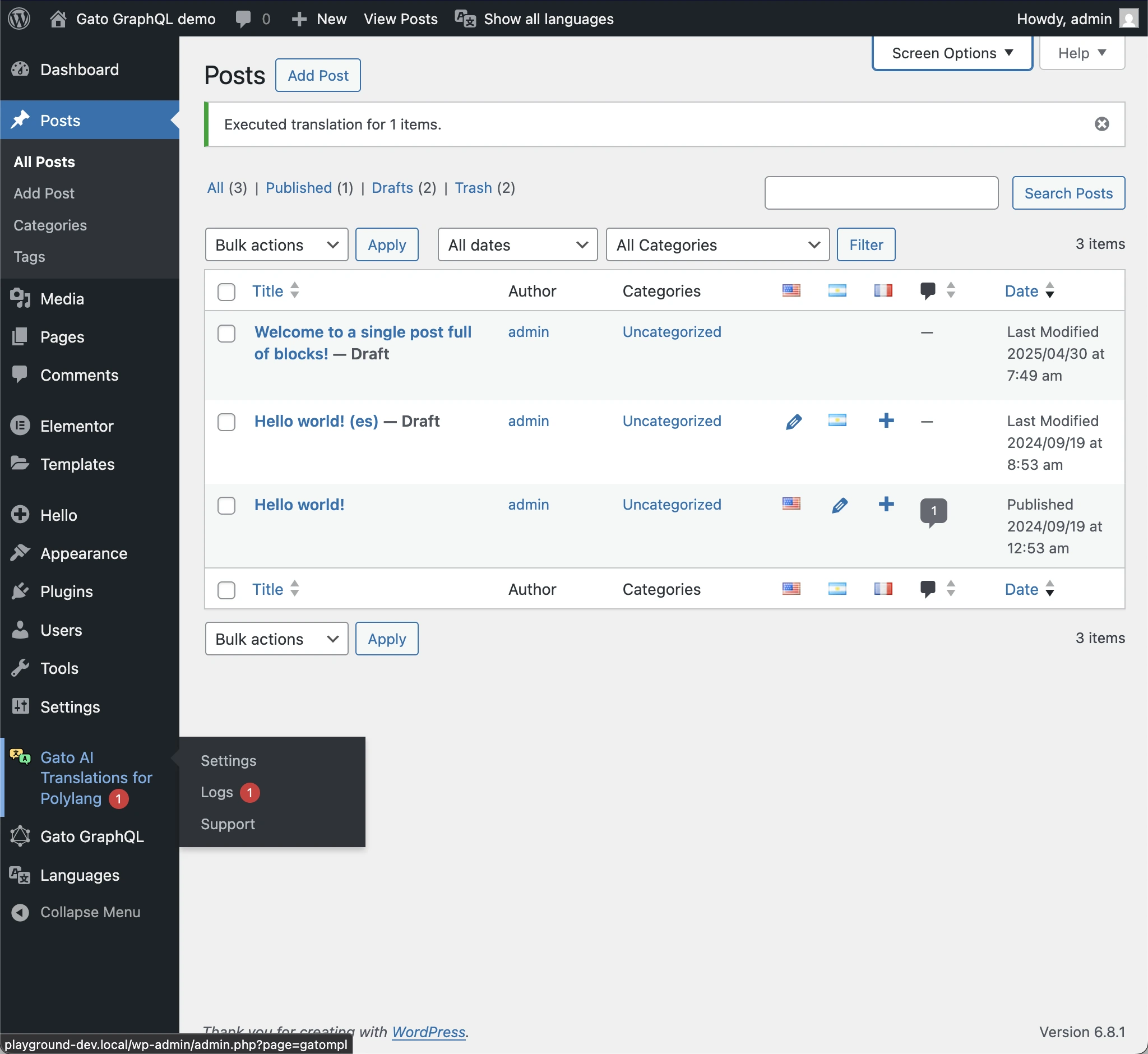
When a translation fails (due to the API going offline, running out of API credits, etc) or produces warnings, you'll see a notification badge in the plugin menu:
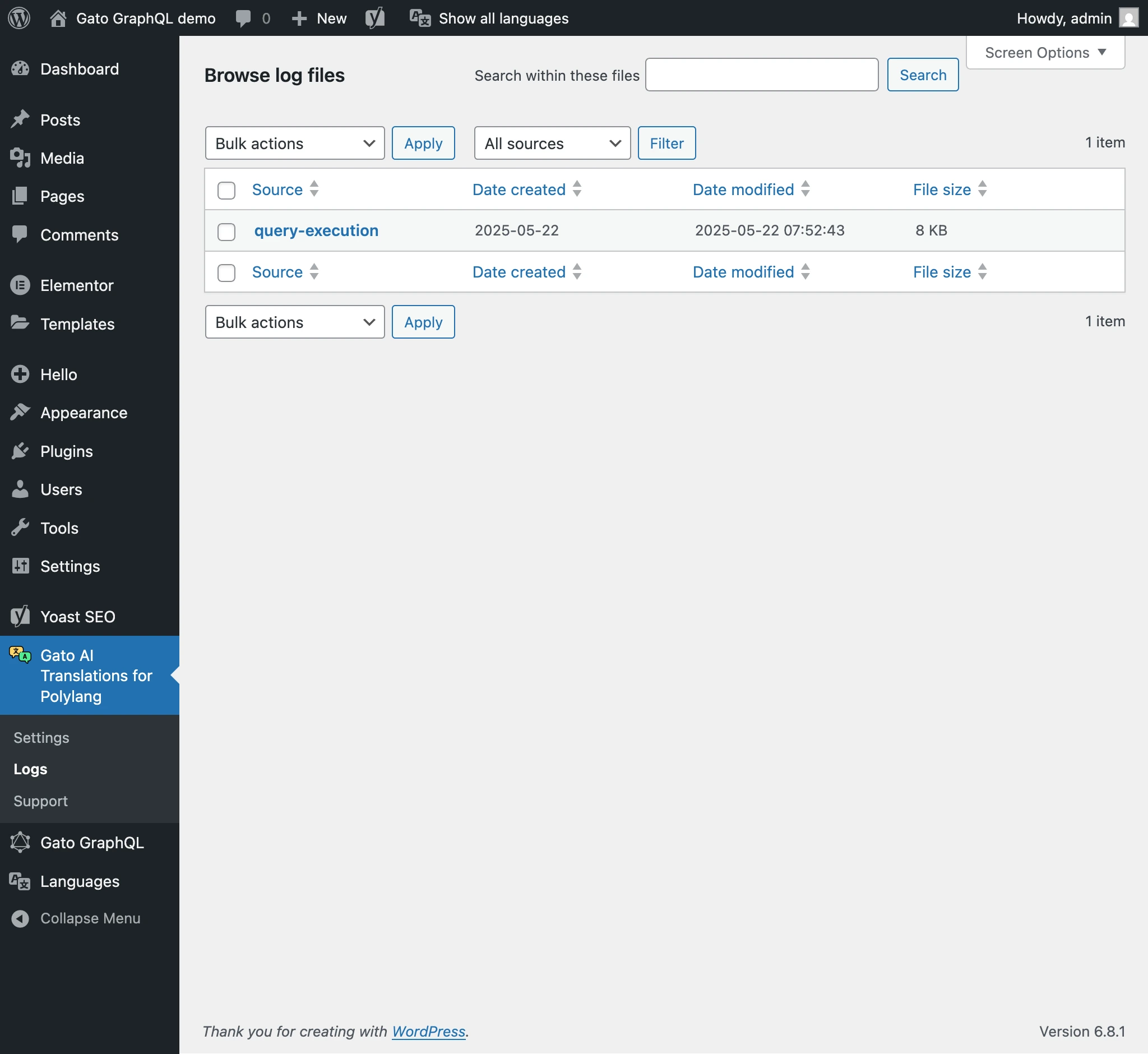
Review the translation logs to understand what happened:
- Go to the Logs menu item in the plugin menu
- Review any errors or warnings
- Fix any issues before continuing
Re-running failed translations
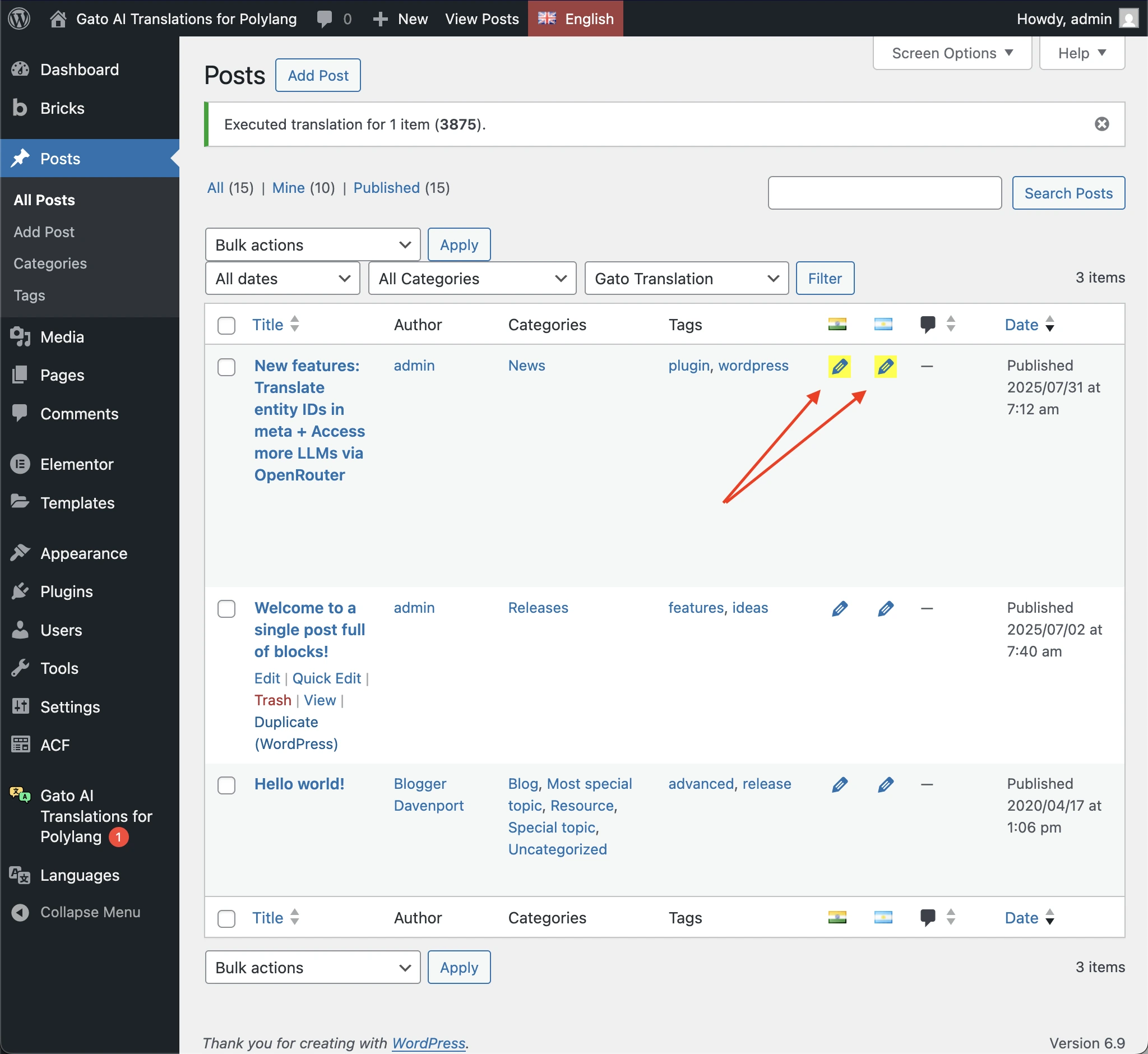
Whenever a translation fails, you can re-trigger translating that entry and language only, and avoid spending API credits for translations that were successful.
Failed translations are highlighted with a yellow background on the Polylang edit icon:
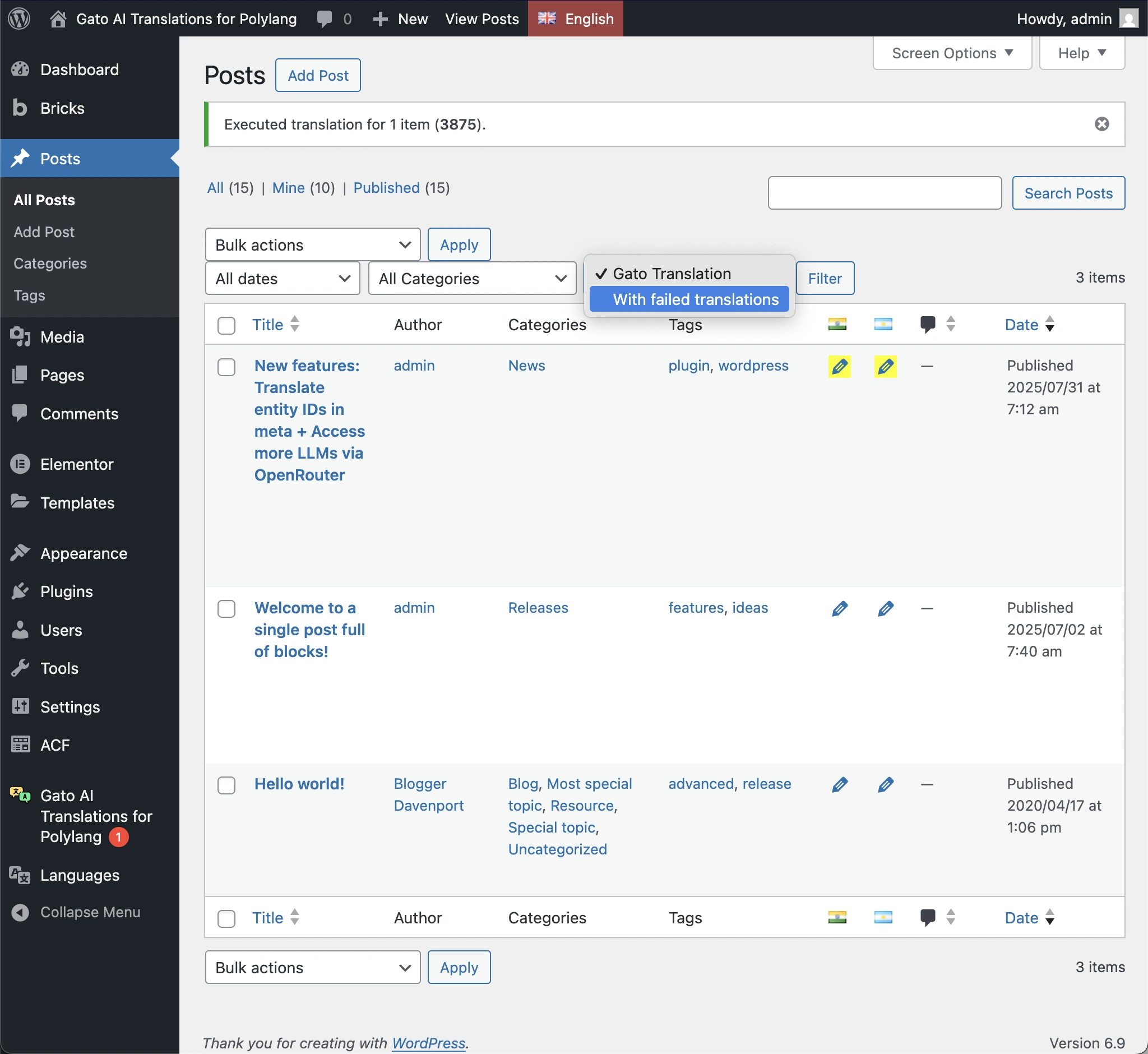
You can filter to show only entries with failed translations:
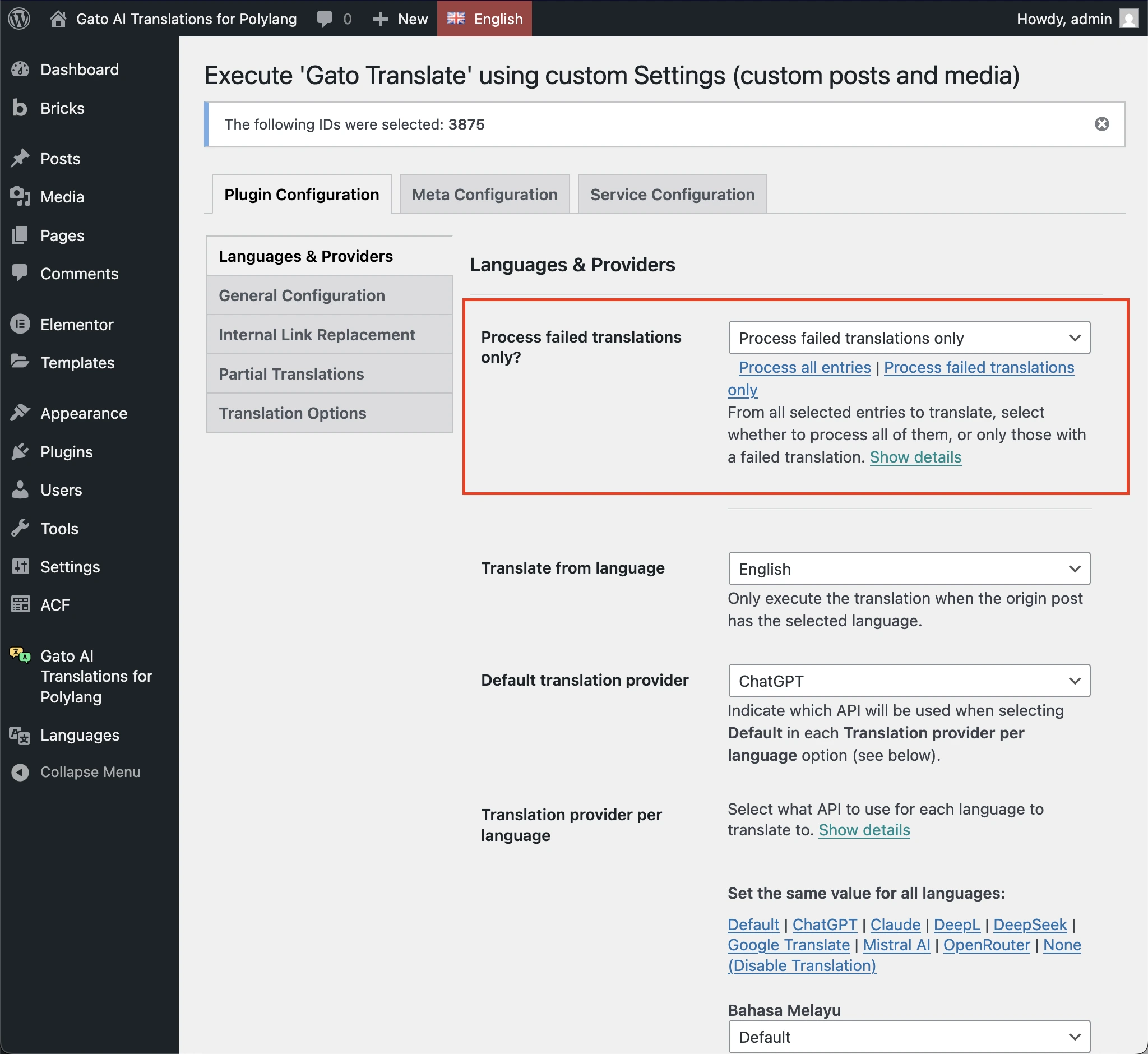
To re-translate only the failed entries, use the Gato Translate (Custom) bulk action with the Process failed translations only option:
Validate Translation Quality and Completeness
After translating content, it's crucial to validate that translations were successful and of good quality. Don't assume everything worked perfectly—take time to verify.
Editor validation:
Open translated posts in the WordPress editor and check:
-
Content translation
- Is all text translated? (not just the title)
- Are all blocks/widgets/elements translated?
- Check Gutenberg blocks, Elementor widgets, or Bricks elements
- Verify formatting is preserved
-
Custom fields
- Are ACF fields translated/copied/referenced correctly?
- Are Meta Box fields handled properly?
- Are custom meta fields configured correctly?
-
SEO metadata
- Check that meta titles are translated
- Verify meta descriptions are translated
- Confirm Open Graph tags are translated
- Review any other SEO plugin fields
-
Media
- Are featured images set correctly?
- Do images in content point to translated versions (if applicable)?
- Are image alt texts translated?
-
Links
- Are internal links pointing to translated versions?
- Are external links preserved correctly?
- Do category/tag links work?
Frontend validation:
View translated posts in the browser and verify:
-
Visual appearance
- Does the page look correct?
- Is the layout preserved?
- Are images displaying properly?
- Is the styling correct?
-
Template application
- Is the correct template being used?
- Are header/footer showing correctly?
- Are sidebars/widgets displaying?
- Is the menu showing the translated version?
-
Functionality
- Do all links work?
- Are forms functioning?
- Do interactive elements work?
- Is navigation correct?
-
Language-specific elements
- For RTL languages, is the layout correct?
- Are fonts rendering properly?
- Is text direction correct?
Translation quality:
Modern AI translation is generally very good, but you should still review:
-
Languages you understand
- Read through translations in languages you know
- Check for accuracy, tone, and style
- Verify technical terms are correct
- Ensure brand voice is maintained
-
Languages you don't understand
- For languages you don't speak, consider hiring a native speaker to review
- This is especially important for languages very different from your own (e.g., English to Korean, Chinese, Arabic)
- Even a quick review can catch major issues
- Professional proofreading is recommended for important content
-
Domain-specific content
- Technical content may need expert review
- Legal/medical content should be reviewed by professionals
- Marketing content may need brand voice adjustments
Repair "Invalid Content" Blocks
When translating large blobs of HTML that contain many tags and attributes, AI services can sometimes return a response that breaks the block’s output.
For example, when translating a core/paragraph block that contains a very large HTML blob using ChatGPT 5.0 mini, like this one:
<!-- wp:paragraph -->
<p>
Pédagogie:
<mark style="background-color:rgba(0, 0, 0, 0)" class="has-inline-color has-luminous-vivid-amber-color">
<mark style="background-color:rgba(0, 0, 0, 0)" class="has-inline-color has-luminous-vivid-amber-color">
<mark style="background-color:rgba(0, 0, 0, 0)" class="has-inline-color has-luminous-vivid-amber-color">
<mark style="background-color:rgba(0, 0, 0, 0)" class="has-inline-color has-luminous-vivid-amber-color">★★★★
<mark style="background-color:rgba(0, 0, 0, 0)" class="has-inline-color has-luminous-vivid-amber-color">
<mark style="background-color:rgba(0, 0, 0, 0)" class="has-inline-color has-luminous-vivid-amber-color">
<mark style="background-color:rgba(0, 0, 0, 0)" class="has-inline-color has-luminous-vivid-amber-color">☆</mark></mark></mark></mark></mark></mark></mark><strong><br></strong>Support :
<mark style="background-color:rgba(0, 0, 0, 0)" class="has-inline-color has-luminous-vivid-amber-color">
<mark style="background-color:rgba(0, 0, 0, 0)" class="has-inline-color has-luminous-vivid-amber-color">
<mark style="background-color:rgba(0, 0, 0, 0)" class="has-inline-color has-luminous-vivid-amber-color">
<mark style="background-color:rgba(0, 0, 0, 0)" class="has-inline-color has-luminous-vivid-amber-color">★★★★
<mark style="background-color:rgba(0, 0, 0, 0)" class="has-inline-color has-luminous-vivid-amber-color">
<mark style="background-color:rgba(0, 0, 0, 0)" class="has-inline-color has-luminous-vivid-amber-color">
<mark style="background-color:rgba(0, 0, 0, 0)" class="has-inline-color has-luminous-vivid-amber-color">☆</mark></mark></mark></mark></mark></mark></mark><br>Coûts :
<mark style="background-color:rgba(0, 0, 0, 0)" class="has-inline-color has-luminous-vivid-amber-color">
<mark style="background-color:rgba(0, 0, 0, 0)" class="has-inline-color has-luminous-vivid-amber-color">
<mark style="background-color:rgba(0, 0, 0)" class="has-inline-color has-luminous-vivid-amber-color">
<mark style="background-color:rgba(0, 0, 0, 0)" class="has-inline-color has-luminous-vivid-amber-color">★★★★
<mark style="background-color:rgba(0, 0, 0, 0)" class="has-inline-color has-luminous-vivid-amber-color">
<mark style="background-color:rgba(0, 0, 0, 0)" class="has-inline-color has-luminous-vivid-amber-color">
<mark style="background-color:rgba(0, 0, 0, 0)" class="has-inline-color has-luminous-vivid-amber-color">☆</mark></mark></mark></mark></mark></mark></mark><br>Débouchés :
<mark style="background-color:rgba(0, 0, 0, 0)" class="has-inline-color has-luminous-vivid-amber-color">
<mark style="background-color:rgba(0, 0, 0, 0)" class="has-inline-color has-luminous-vivid-amber-color">★★★★
<mark style="background-color:rgba(0, 0, 0, 0)" class="has-inline-color has-luminous-vivid-amber-color">
<mark style="background-color:rgba(0, 0, 0, 0)" class="has-inline-color has-luminous-vivid-amber-color">
<mark style="background-color:rgba(0, 0, 0, 0)" class="has-inline-color has-luminous-vivid-amber-color">☆</mark></mark></mark></mark></mark>
</p>
<!-- /wp:paragraph -->...the response might introduce an extra <mark> tag that wasn’t present in the original content:
<mark style="background-color:rgba(0, 0, 0, 0)" class="has-inline-color has-luminous-vivid-amber-color">
<mark style="background-color:rgba(0, 0, 0, 0)" class="has-inline-color has-luminous-vivid-amber-color">★★
+<mark style="background-color:rgba(0, 0, 0, 0)" class="has-inline-color has-luminous-vivid-amber-color">
<mark style="background-color:rgba(0, 0, 0, 0)" class="has-inline-color has-luminous-vivid-amber-color">
<mark style="background-color:rgba(0, 0, 0, 0)" class="has-inline-color has-luminous-vivid-amber-color">When editing the post in the WordPress editor, that block may fail to render and instead display the message "Block contains unexpected or invalid content":
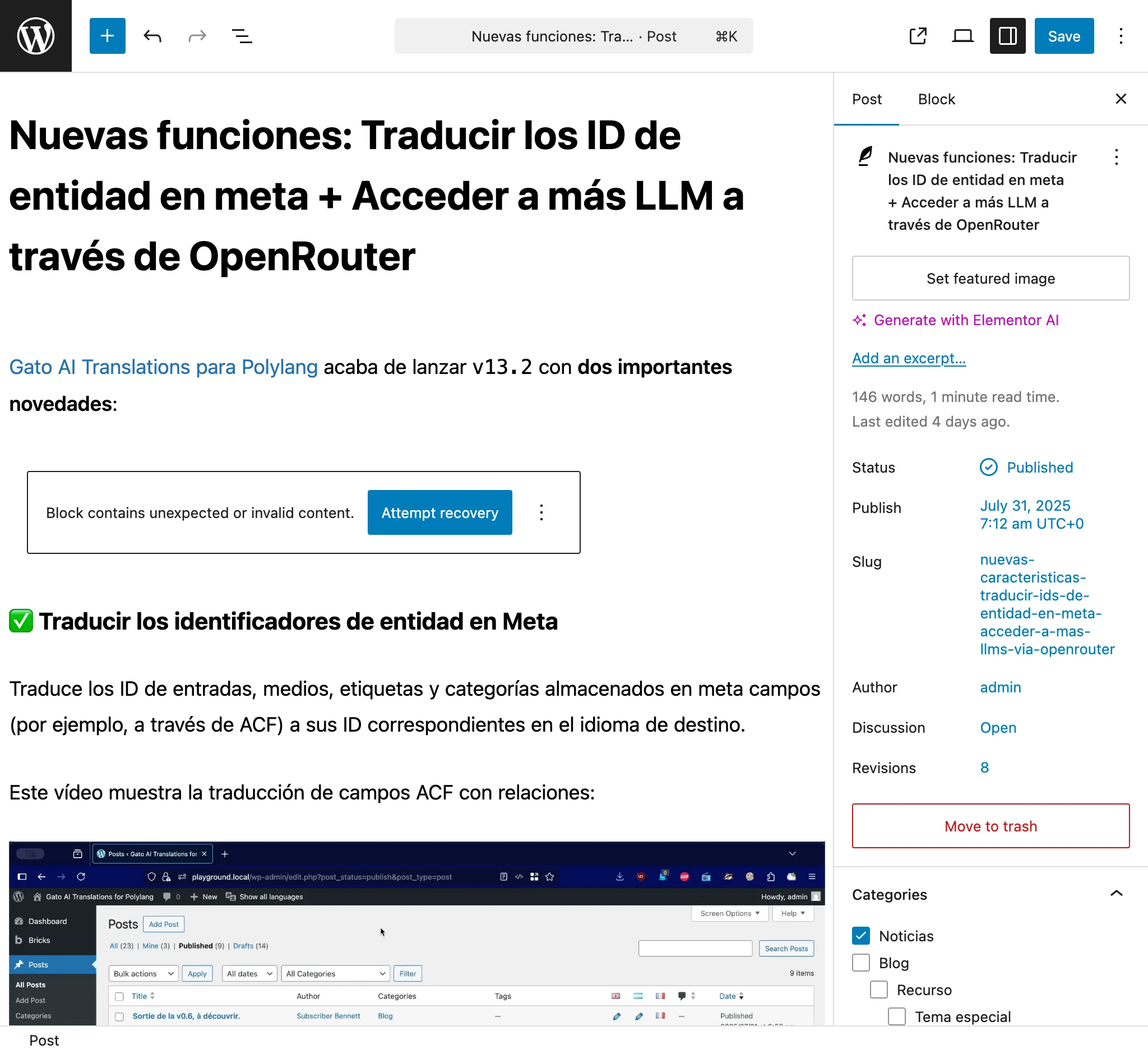
Clicking on Attempt recovery will quite likely resolve the problem.
If possible, avoid using HTML blocks, because the entire HTML blob must be translated as a single unit.
Use custom blocks with properties instead, so those translatable strings can be identified, extracted, and translated without breaking any formatting.
Troubleshoot Corrupted Data Errors
Occasionally, you may encounter errors during translation because your content contains corrupted or stale data. This typically happens when:
- A post type previously supported a feature (like parent posts) but no longer does
- Content references entities that no longer exist
- Database inconsistencies from migrations or plugin changes
- Orphaned relationships in custom fields
Understanding the error:
When you see an error like this in the logs:
2025-10-25T03:40:38+00:00 Error [Query "create-missing-translation-media"] Execution with errors: 🔴 Object with ID '26061' (of type 'GenericCustomPost') cannot be loaded. Please check if referencing this ID is stale data (i.e. still stored on the WordPress database, but pointing to a non-existing object) and, if so, remove it or fix it.This means:
- The content references an entity (post, page, media, etc.) with ID 26061
- That entity no longer exists in the database
- The plugin can't translate because it can't resolve the reference
How to fix:
Method 1: WordPress Editor (simplest)
- Open the post/item that's failing to translate
- Identify the corrupted reference (check custom fields, relationships, etc.)
- Remove or fix the reference
- Save the post
- Try translating again
Method 2: Database cleanup
If you can't fix it through the editor:
- Identify what field contains the bad reference
- Use a database tool or plugin to remove the stale data
- Be careful—always backup before making database changes
Method 3: Gato GraphQL (advanced)
As Gato AI Translations for Polylang uses Gato GraphQL under the hood, you can run GraphQL queries to fix corrupted data programmatically:
-
First, retrieve the IDs of items with issues using a GraphQL query.
-
Then fix the issue using a mutation. For example, to remove a parent reference from a media item:
mutation {
updateMediaItem( input: { id: 26066, customPostID: null } ) {
status
errors {
__typename
...on GenericErrorPayload {
message
}
}
}
}If you can't fix it:
If the corrupted data can't be cleaned up, you may need to:
- Recreate the post/item from scratch
- Export content, clean it, and re-import
- Contact support for assistance with complex cases
Integrate Translated Entries into the Configuration
After translating your content, the newly-created translated entries may need to be integrated into the website configuration.
Update ACF Field Groups
ACF Field Groups can be assigned to specific posts, pages, categories, tags, or other entities. When you translate content, the translated versions may also need be assigned to the same field groups.
After translating, update your ACF Field Group assignments to include the translated versions:
- Go to the Field Groups menu item in the ACF plugin menu
- Edit the field group that applies to specific entities
- In the Location Rules, add the translated versions
- Save the field group
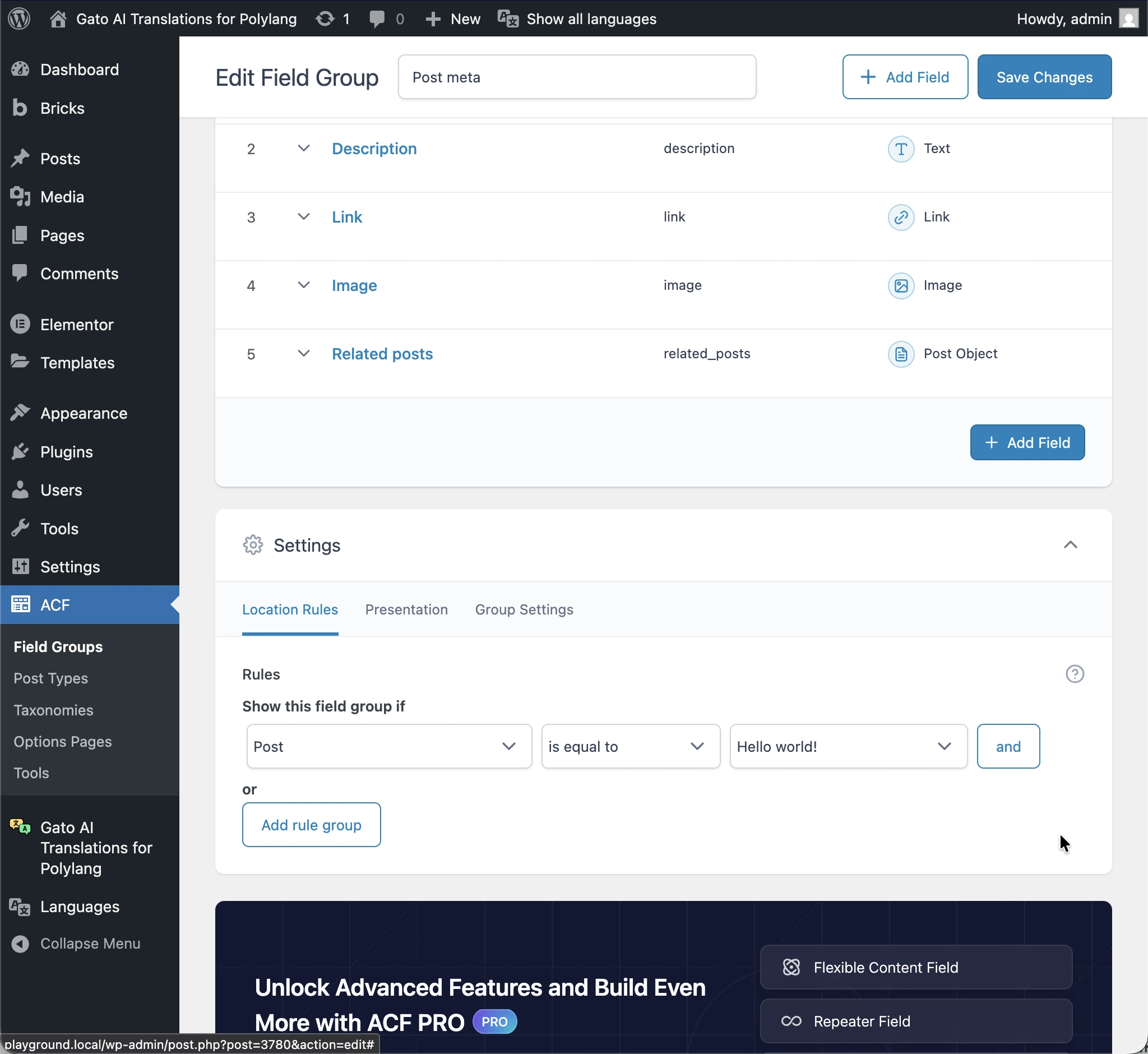
Example:
A field group applies to the specific post "Hello World" in the origin language:
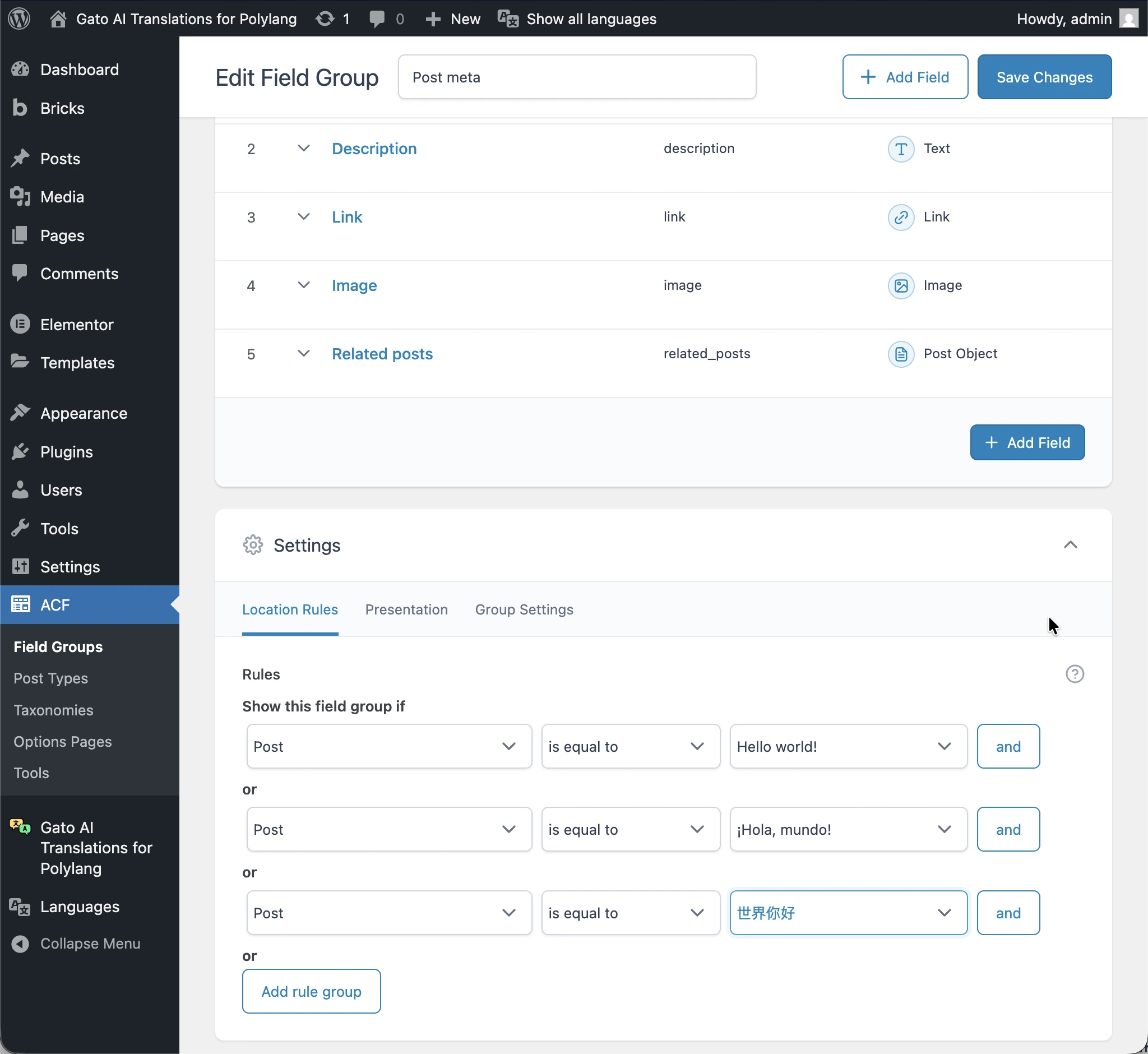
After translating the post, the translated versions ("Hola Mundo" in Spanish, and "你好世界" in Chinese) must also be assigned to the same field group:
That's it!
You've now completed the translation process. Congratulations! 👏
Conclusion
This comprehensive guide should help you successfully translate your WordPress website. If you need more information, check the Gato AI Translations for Polylang documentation.
