

Running translations in batch using WP-CLI
You can run translations in batch using WP-CLI, using bash scripts. This allows you to run the translations in the background, while you're working on something else.
To do that, create two bash scripts:
- A main script that contains the logic to process them in batches (it never changes)
- A configuration file that defines which items to translate (to be updated by each translation run)
Main script
Create a file named gatotranslate.sh (download sample) that contains the logic to process the translations:
You can customize the parameters passed to the gatotranslate command (eg: --status-to-update=draft, --status-when-translated=same-as-origin, --parts=properties, etc.).
#!/bin/bash
# ------------------------------------------------------------------------------------------------
# Load configuration
# ------------------------------------------------------------------------------------------------
SCRIPT_DIR="$(cd "$(dirname "${BASH_SOURCE[0]}")" && pwd)"
source "${SCRIPT_DIR}/gatotranslate.config.sh"
# ------------------------------------------------------------------------------------------------
# Arguments
# ------------------------------------------------------------------------------------------------
# (Optional) Provide the start batch number as an argument, default is 1
start_batch=${1:-1}
# ------------------------------------------------------------------------------------------------
# Logic
# ------------------------------------------------------------------------------------------------
batch_size=${batch_size:-1} # If not provided, default to 1
total_items=${#items[@]}
total_batches=$(((total_items + batch_size - 1) / batch_size))
start_batch_index=$(((start_batch - 1) * batch_size))
echo "----------------------------------------"
echo "Translating $subcommand items"
echo "----------------------------------------"
echo "Batch size: $batch_size"
echo "Total items: $total_items"
echo "Total batches: $total_batches"
echo "Starting from batch number: $start_batch"
echo "----------------------------------------"
for ((start=start_batch_index; start<total_items; start+=batch_size)); do
# Get the next batch of items
batch=("${items[@]:$start:$batch_size}")
echo "Processing batch #$((start/batch_size + 1))"
# Pass all items in the batch as separate arguments
cmd=$(printf 'wp gatotranslate %s "%s" --status-to-update=any --user=%s' "$subcommand" "${batch[*]}" "$user")
echo "Command: $cmd"
eval $cmd
exit_code=$?
if [ $exit_code -ne 0 ]; then
echo -e "\a\a\a\a\a"
exit 1
fi
done
# Finished successfully
echo -e "\a"
echo "----------------------------------------"
echo "Finished successfully 👏"
echo "----------------------------------------"Configuration file
Create a file named gatotranslate.config.sh (download sample) that contains the configuration for your batch translation:
user="admin"
subcommand="post"
batch_size=1
items=(
4118
4117
4116
3739
)This file must contain the following variables:
| Variable | Description |
|---|---|
user | WordPress username to execute the command (most usually admin) |
subcommand | gatotranslate WP-CLI subcommand to execute (post, media, term or menu) |
batch_size | Number of items to translate in each batch (default is 1) |
items | Array of IDs of the items to translate (posts, tags, categories, media, menus, etc.) |
Executing the script
Execute from the WordPress root directory, where the wp command is available.
To run the batch translation, execute:
bash +x gatotranslate.shThe script will execute the gatotranslate command for all items, in batches of the specified size, displaying progress information for each batch.
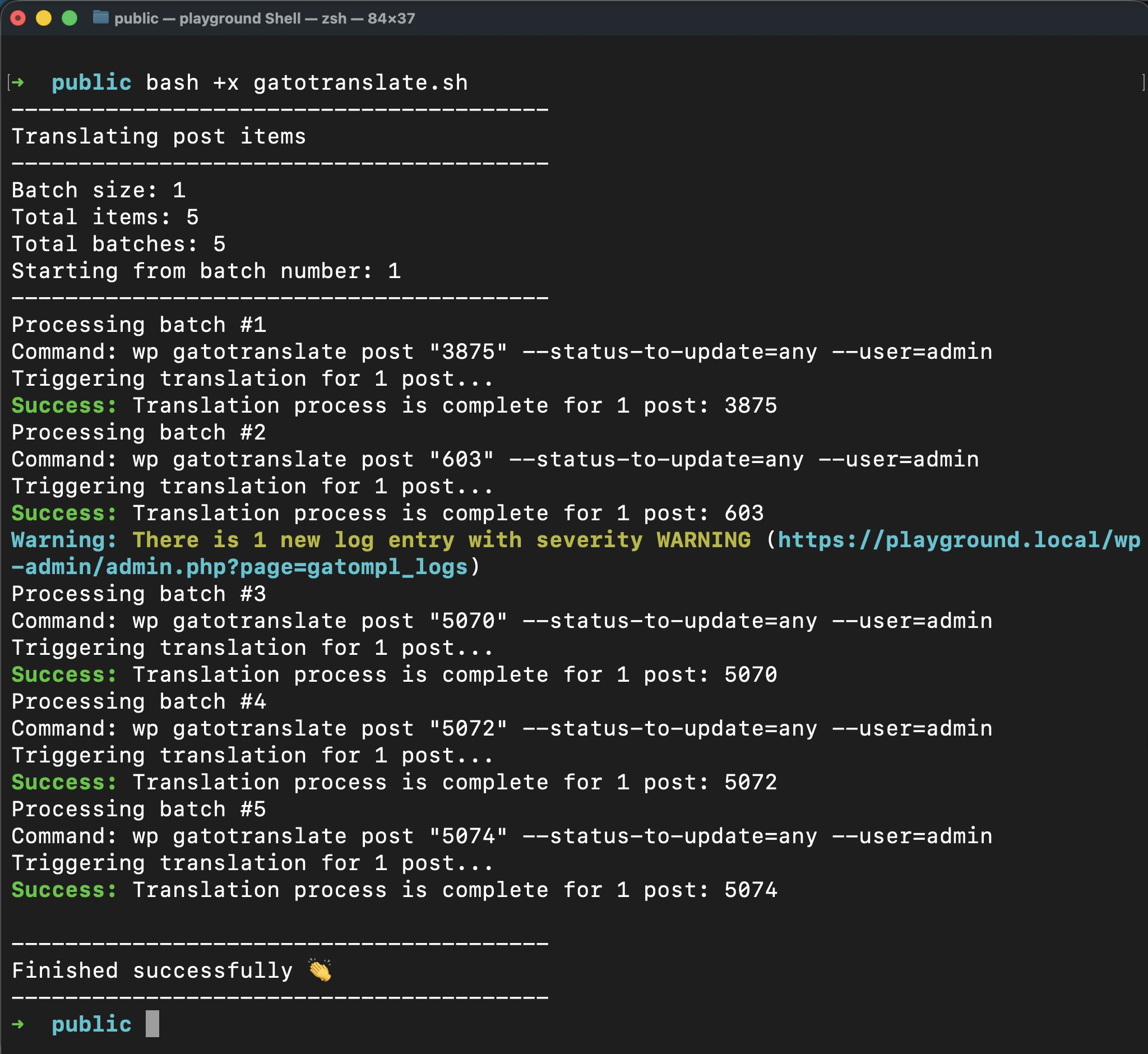
When the script finishes successfully, it will emit a single beep sound.
Stopping the execution in case of error
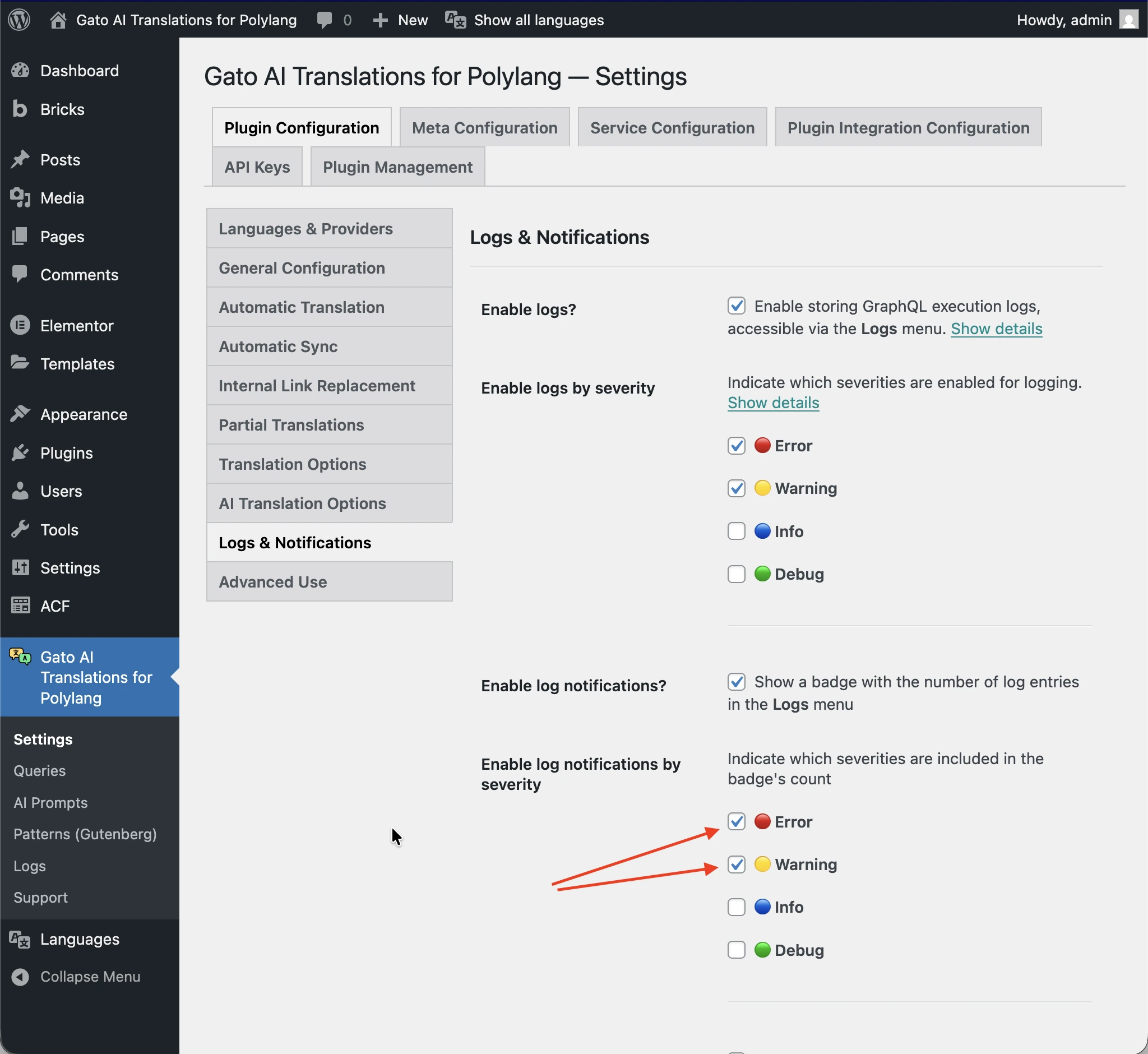
To make the script stop automatically whenever an error or warnings is added to the logs, add the --fail-if-log-notifications parameter to the command in gatotranslate.sh:
cmd=$(printf 'wp gatotranslate %s "%s" --fail-if-log-notifications --status-to-update=any --user=%s' "$subcommand" "${batch[*]}" "$user")The severity of the log notifications to trigger the script stop are those configured in the Settings > Plugin Configuration > Logs & Notifications page.
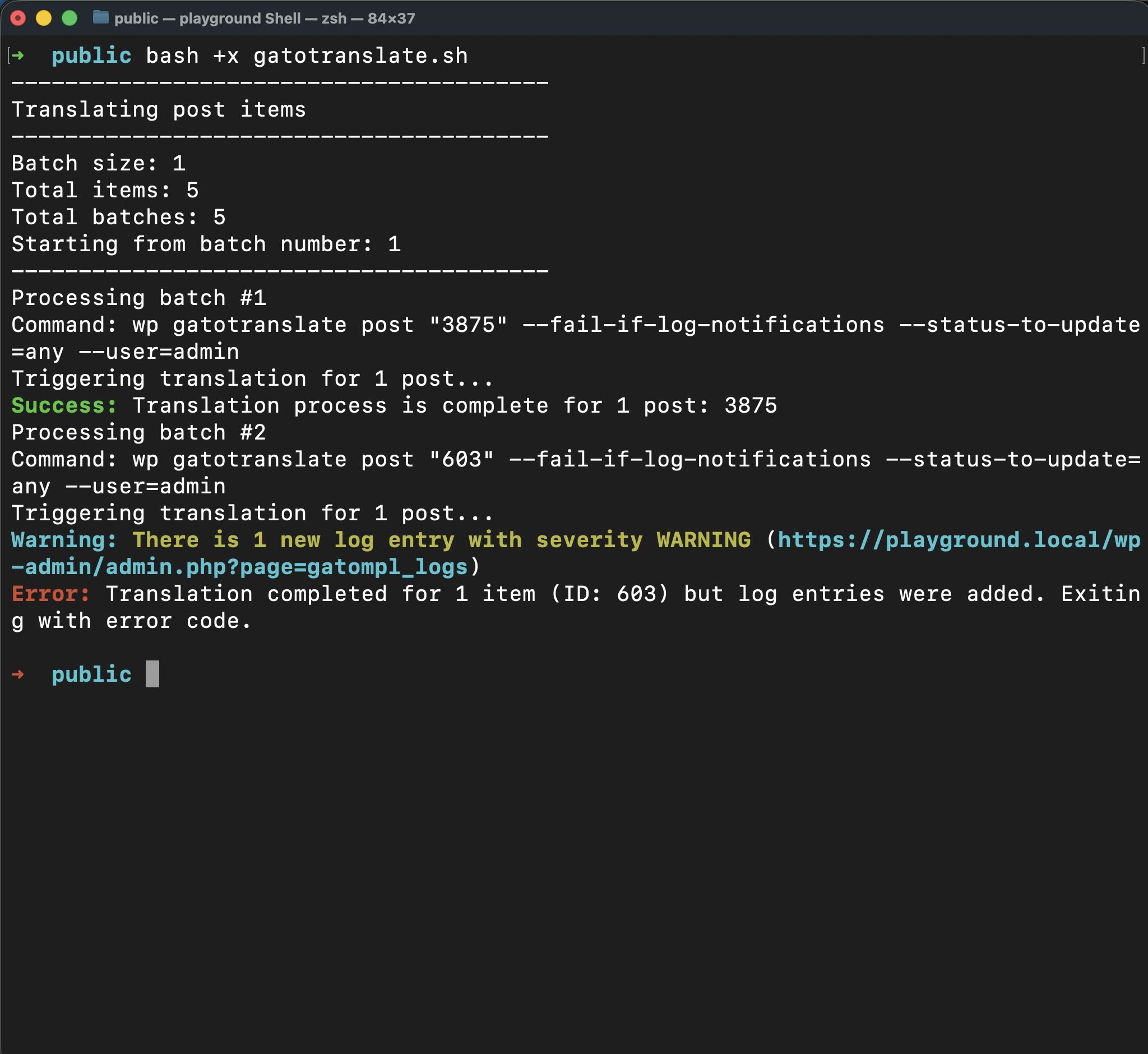
When the script stops due to a log notification, it will emit an extended beep sequence.
After fixing the issue, you can resume the translation from the point where it failed by passing the batch number as an argument.
This way, you can avoid re-processing items that were already successfully translated, saving both time and API credits.
For example, if the failure occurred at batch 2, after fixing the issue, execute:
bash +x gatotranslate.sh 2Advanced: Retrieving the IDs of the items to translate
When configuring the batch translation, you need to know the IDs of the items to translate.
Since the plugin runs Gato GraphQL under the hood, we can conveniently execute a GraphQL query to retrieve this information.
To execute GraphQL queries, you must first enable the Advanced Mode and access the Queries CPT. See Creating Helper Queries for instructions on how to enable Advanced Mode.
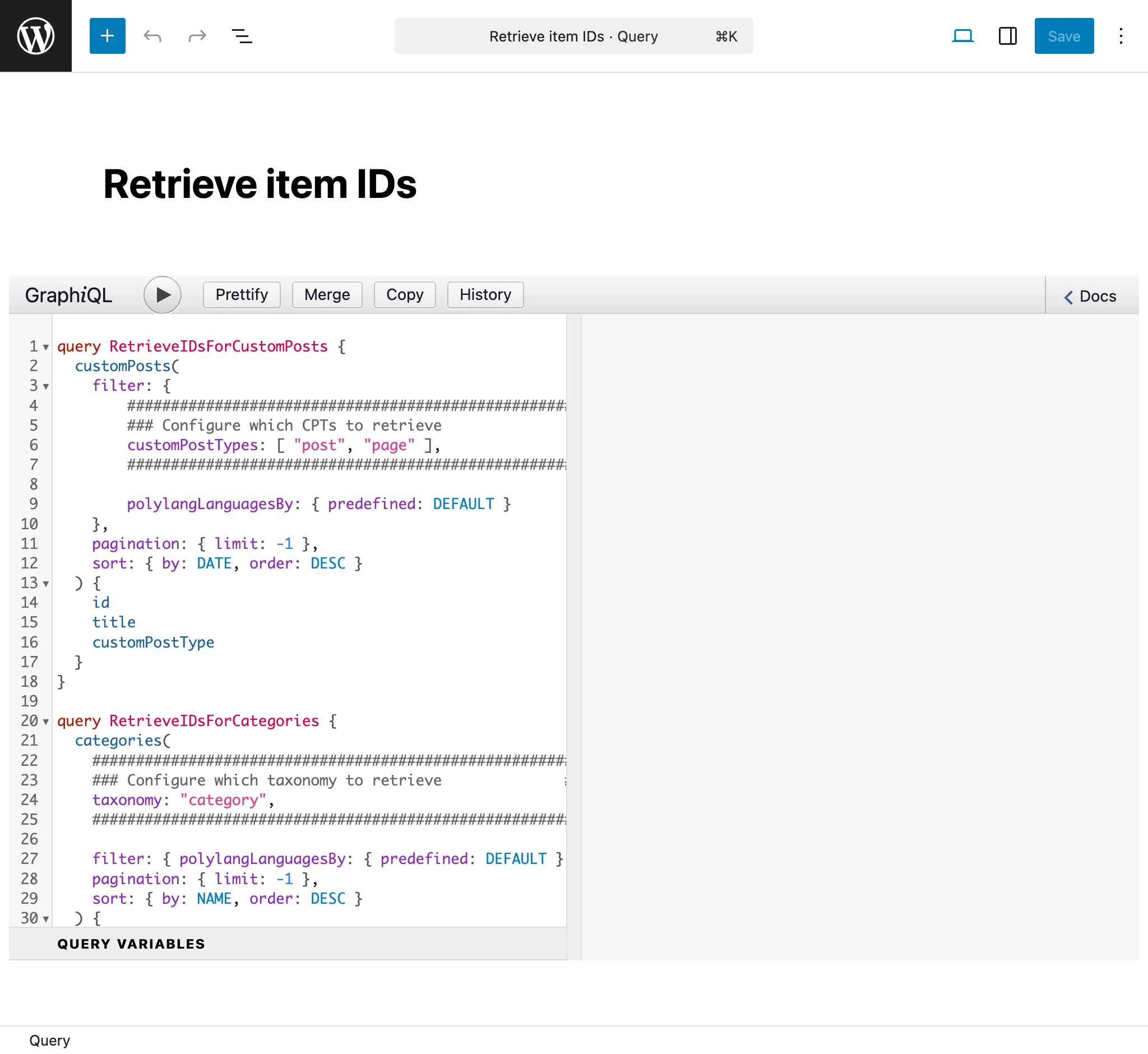
Add a new Queries entry, with title Retrieve item IDs, and the following GraphQL query:
query RetrieveIDsForCustomPosts {
customPosts(
filter: {
#########################################################
### Configure which CPTs to retrieve ###
customPostTypes: [ "post", "page" ],
#########################################################
polylangLanguagesBy: { predefined: DEFAULT }
},
pagination: { limit: -1 },
sort: { by: DATE, order: DESC }
) @export(as: "ids") {
id
title
customPostType
}
compiledData: self {
ids: _arrayJoin( array: $ids, separator: " " )
}
}
query RetrieveIDsForCategories {
categories(
#########################################################
### Configure which taxonomy to retrieve ###
taxonomy: "category",
#########################################################
filter: { polylangLanguagesBy: { predefined: DEFAULT } },
pagination: { limit: -1 },
sort: { by: NAME, order: DESC }
) @export(as: "ids") {
id
name
taxonomy
}
compiledData: self {
ids: _arrayJoin( array: $ids, separator: " " )
}
}
query RetrieveIDsForTags {
tags(
#########################################################
### Configure which taxonomy to retrieve ###
taxonomy: "post_tag",
#########################################################
filter: { polylangLanguagesBy: { predefined: DEFAULT } },
pagination: { limit: -1 },
sort: { by: NAME, order: DESC }
) @export(as: "ids") {
id
name
taxonomy
}
compiledData: self {
ids: _arrayJoin( array: $ids, separator: " " )
}
}
query RetrieveIDsForMedia {
mediaItems(
filter: { polylangLanguagesBy: { predefined: DEFAULT } },
pagination: { limit: -1 },
sort: { by: DATE, order: DESC }
) @export(as: "ids") {
id
title
}
compiledData: self {
ids: _arrayJoin( array: $ids, separator: " " )
}
}
#################################################################################################
# Watch out: This will bring all menus, not just the ones in the origin language.
# Translated menus are those with a location containing the "___" string,
# e.g.: "header___es", "footer___fr", etc.
#################################################################################################
query RetrieveIDsForMenus {
menus(
pagination: { limit: -1 },
sort: { by: NAME, order: DESC }
) @export(as: "ids") {
id
name
locations
}
compiledData: self {
ids: _arrayJoin( array: $ids, separator: " " )
}
}
Depending on what entities you want to translate, you will need to configure and execute the corresponding operation in the query.
For instance, to retrieve the IDs of post categories, you will need to execute the RetrieveIDsForCategories operation, passing the taxonomy category as argument:
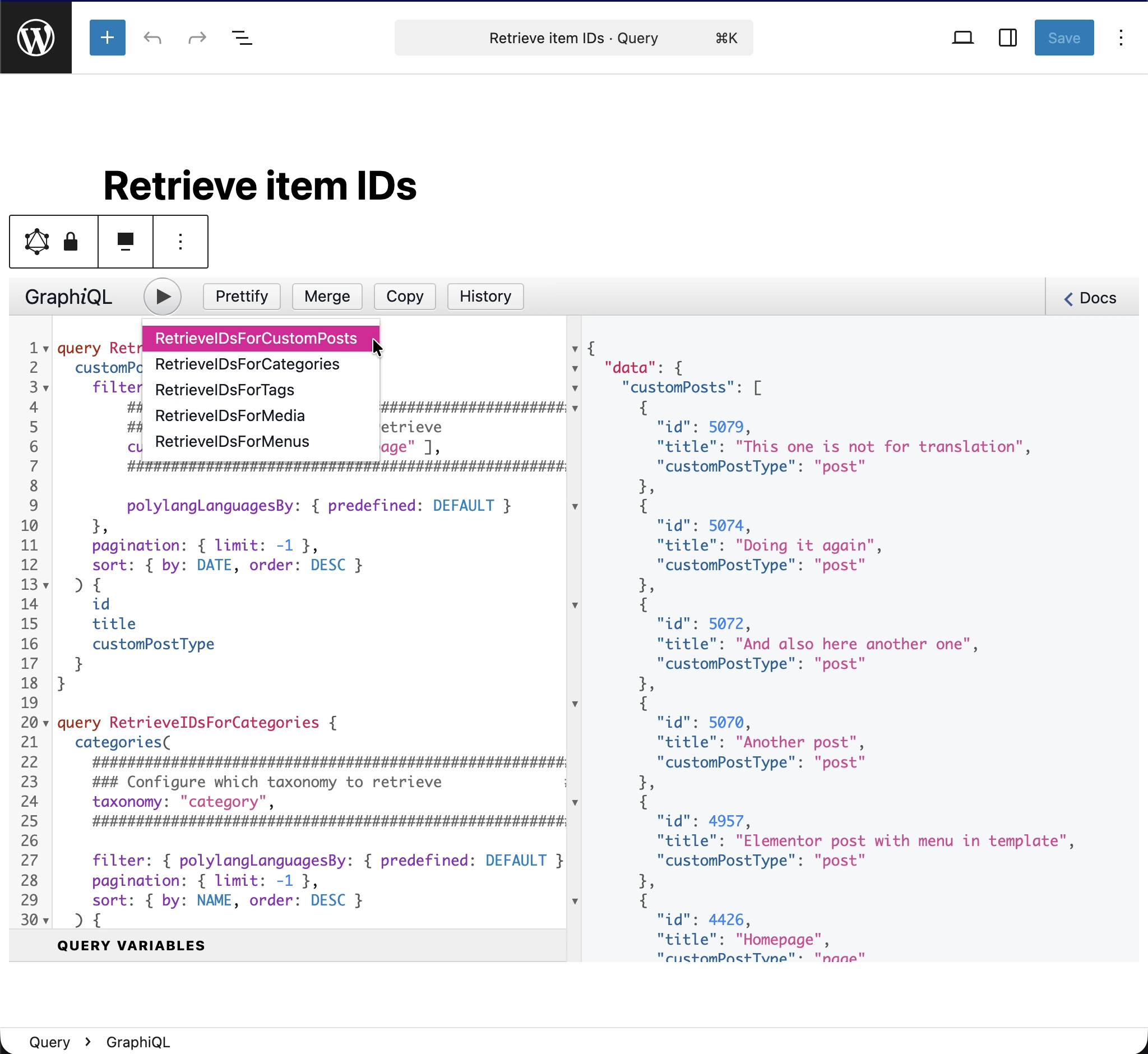
From the JSON response, the IDs of the items to translate are printed in entry data.compiledData.ids (highlighted in the image). Copy that string and store it in the items array in the configuration file.