

Creating Helper Queries
When working with translations, you may encounter various situations where you need to identify, analyze, or process specific content across your site. For example:
- Finding posts containing a specific Gutenberg block that can't be translated
- Identifying posts with corrupted or malformed data
- Locating content that needs manual review or migration
- Retrieving lists of posts, pages, or other content types for batch operations
Since Gato AI Translations for Polylang runs Gato GraphQL under the hood, you can conveniently use this tool to create custom GraphQL queries to search, filter, and retrieve information from your WordPress site.
Enabling Advanced Mode
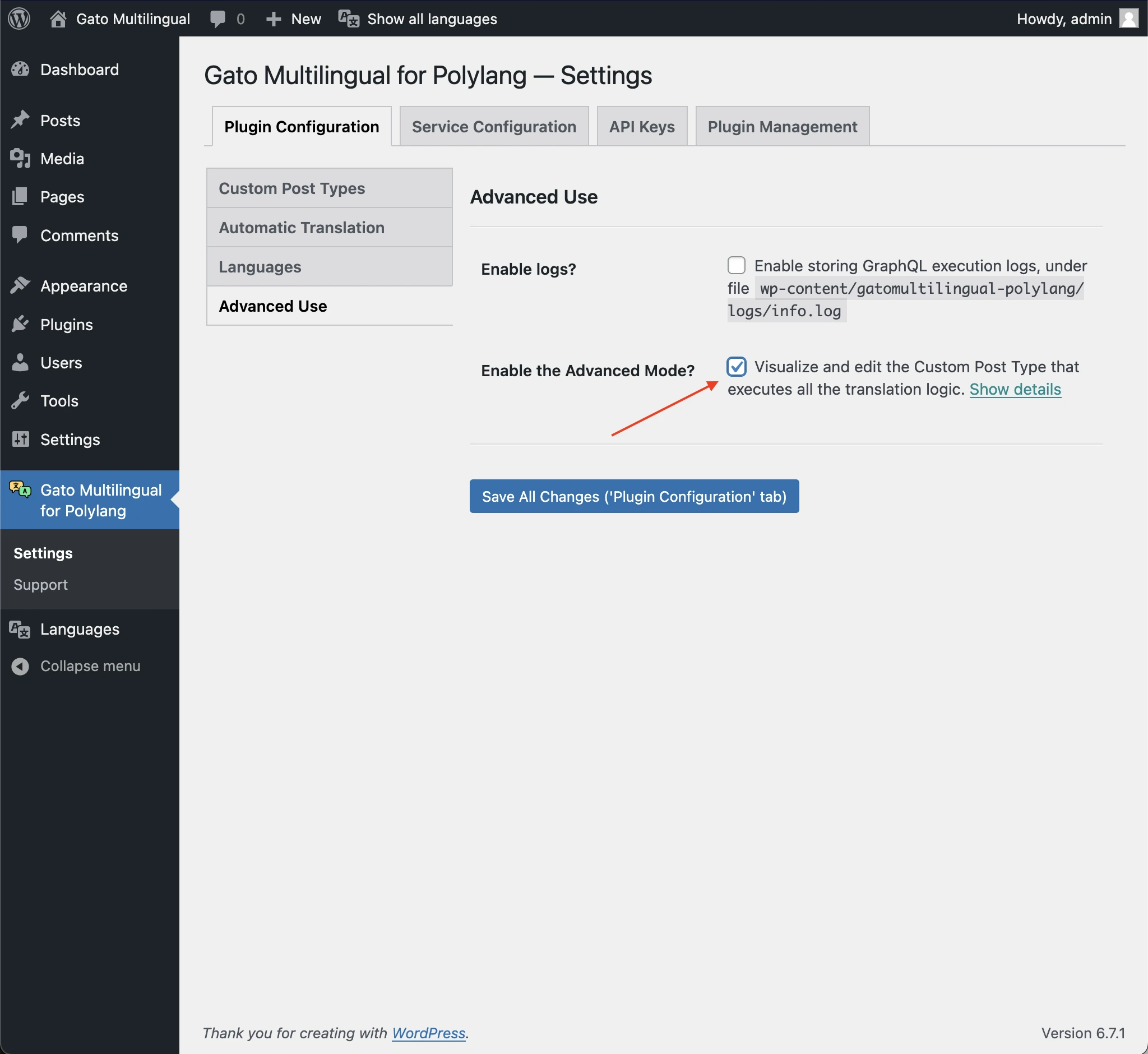
To execute GraphQL queries, you must first enable the Advanced Mode in the plugin Settings.
Go to Settings > Plugin Configuration > Advanced Use and select Enable the Advanced Mode:
Once enabled, the Queries custom post type will become available in your WordPress admin menu:
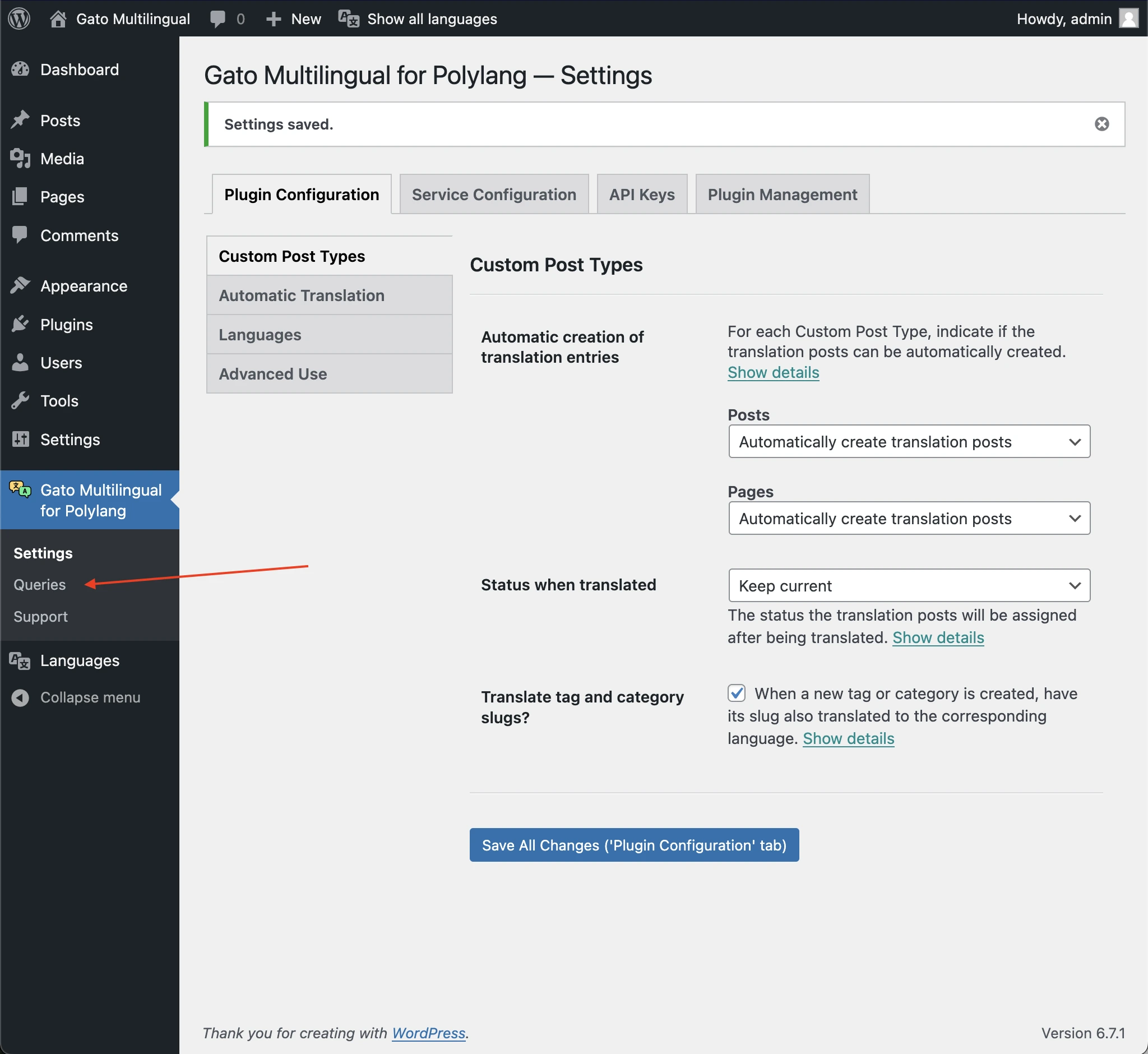
Navigate to Queries in your WordPress admin menu and add a new entry. Give it a descriptive title that clearly indicates what the query does.
Examples
Find Posts Containing a Specific Block
One common use case is identifying posts that contain a specific Gutenberg block that cannot be translated. This query helps you locate all posts that need to be migrated to a different, translatable block.
Create a new entry with a title Find posts containing a certain block, and use this query:
query FindPostsContainingBlock(
$blockName: String!
) {
customPostCount(
filter: {
status: any,
search: $blockName
}
)
customPosts(
filter: {
status: any,
search: $blockName
},
pagination: { limit: -1 }
) {
id
title
customPostType
url
wpAdminEditURL
}
}Notice that we can provide variables to the query, so we can reuse it for different blocks.
For example, to find posts containing the Yoast FAQ block, set the GraphQL variables to:
{
"blockName": "yoast/faq-block"
}Then execute the query:
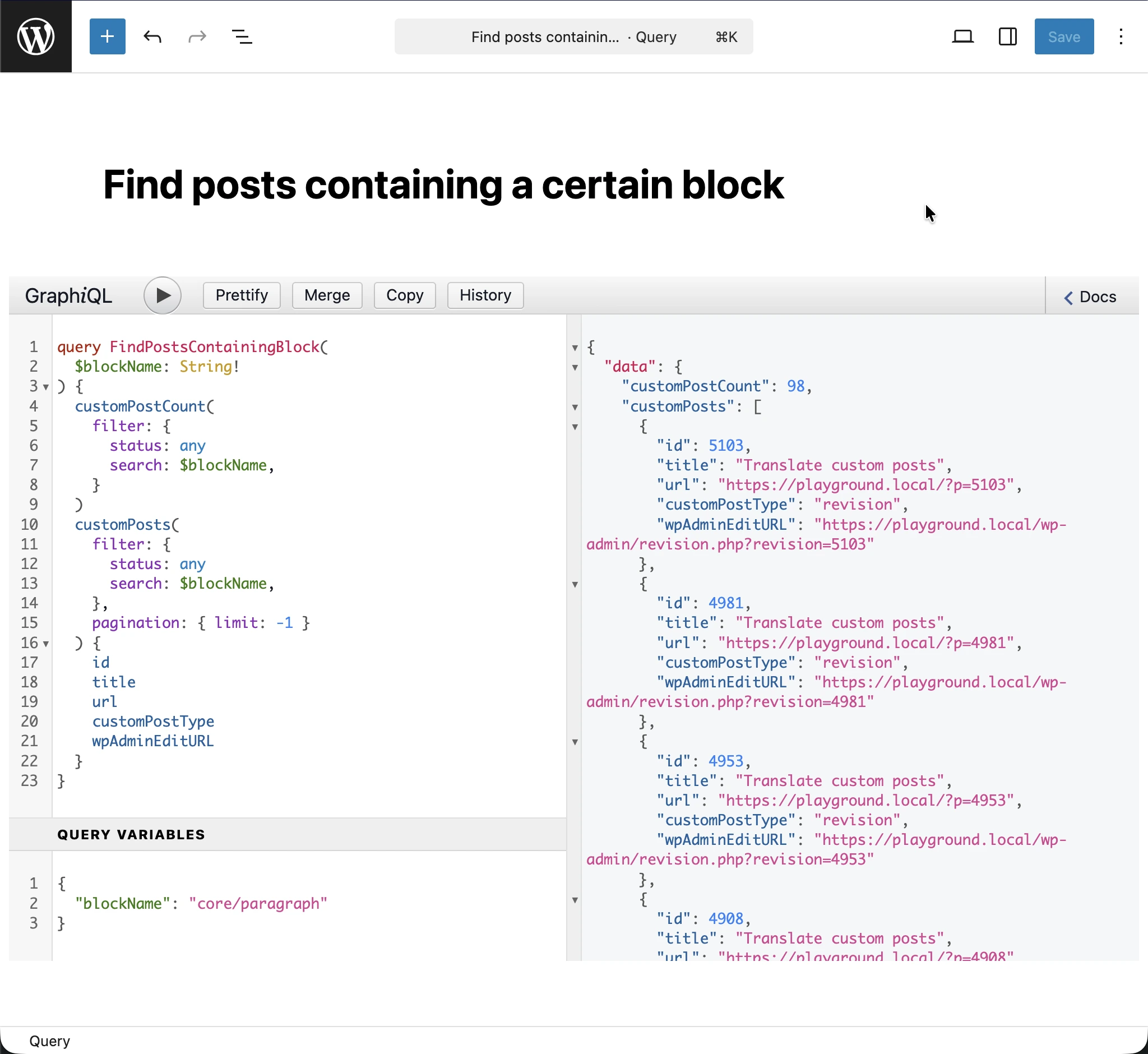
From the response, you can see the list of posts containing the Yoast FAQ block. Clicking on any url will open the post in the frontend, or clicking on any wpAdminEditURL link will open the post in the WordPress editor.
{
"data": {
"customPostCount": 6,
"customPosts": [
{
"id": 38602,
"title": "BTS B",
"customPostType": "page",
"url": "https://www.mysite.com/bts-dietetique-b/",
"wpAdminEditURL": "https://www.mysite.com/wp-admin/post.php?post=38602&action=edit"
},
{
"id": 38024,
"title": "Merci",
"customPostType": "page",
"url": "https://www.mysite.com/merci/",
"wpAdminEditURL": "https://www.mysite.com/wp-admin/post.php?post=38024&action=edit"
},
{
"id": 38633,
"title": "BTS A",
"customPostType": "page",
"url": "https://www.mysite.com/bts-dietetique-a/",
"wpAdminEditURL": "https://www.mysite.com/wp-admin/post.php?post=38633&action=edit"
},
{
"id": 34871,
"title": "Collagène marin B",
"customPostType": "page",
"url": "https://www.mysite.com/meilleurs-collagenes-marin/",
"wpAdminEditURL": "https://www.mysite.com/wp-admin/post.php?post=34871&action=edit"
},
{
"id": 34853,
"title": "Collagène marin A",
"customPostType": "page",
"url": "https://www.mysite.com/meilleur-collagene-marin/",
"wpAdminEditURL": "https://www.mysite.com/wp-admin/post.php?post=34853&action=edit"
},
{
"id": 33987,
"title": "Meilleur collagène en 2025 : l’avis d’un médecin (15 marques)",
"customPostType": "page",
"url": "https://www.mysite.com/meilleur-collagene/",
"wpAdminEditURL": "https://www.mysite.com/wp-admin/post.php?post=33987&action=edit"
}
]
}
}Fix Corrupted Data Errors
Another common use case is fixing corrupted data errors.
For instance, if a media item has a non-existing parent reference, the plugin will fail to translate the content. You can fix this by removing the parent reference.
Create a new entry with a title Remove parent reference from media item, and use this query:
mutation RemoveParentReferenceFromMediaItem($mediaItemID: ID!) {
updateMediaItem( input: { id: $mediaItemID, customPostID: null } ) {
status
errors {
__typename
...on GenericErrorPayload {
message
}
}
}
}For example, to fix the corrupted data error for the media item with ID 26066, set the GraphQL variables to:
{
"mediaItemID": 26066
}And execute the query.